
Open a sermon and read it
How a sermon opens, what the top bar and the ☰ menu hold, and how to move through the text: paragraph numbers, the star, the PDF, scrolling and jumping.
On this page
A sermon opens as one page of text, with its title, its code and the place where it was preached at the top. It is the same page whether you come from Browse, from an answer, from a plan or from Home.
Ways to open a sermon
- From Browse: choose a sermon in the index, or a passage in the search results. See Browse the index.
- From an answer: a source with its sermon and paragraph opens the sermon at that paragraph.
- From a plan: the day’s reading opens at its first paragraph, with the place to stop marked.
- From Home: Continue reading reopens a sermon where your place was kept. See Continue reading.
- From a link someone shared: it opens on the passage they chose.
The index and the search around the sermon
On a phone the sermon takes the whole screen. The button at the top left of the bar, a book with a magnifier, brings the index and the search back over it, and they step away when you pick a sermon or a passage.
On a wide screen, such as a computer window or a tablet held sideways, the index and the search stay at the left with the sermon beside them. Close them with the ✕ for more room: the same button in the bar brings them back.
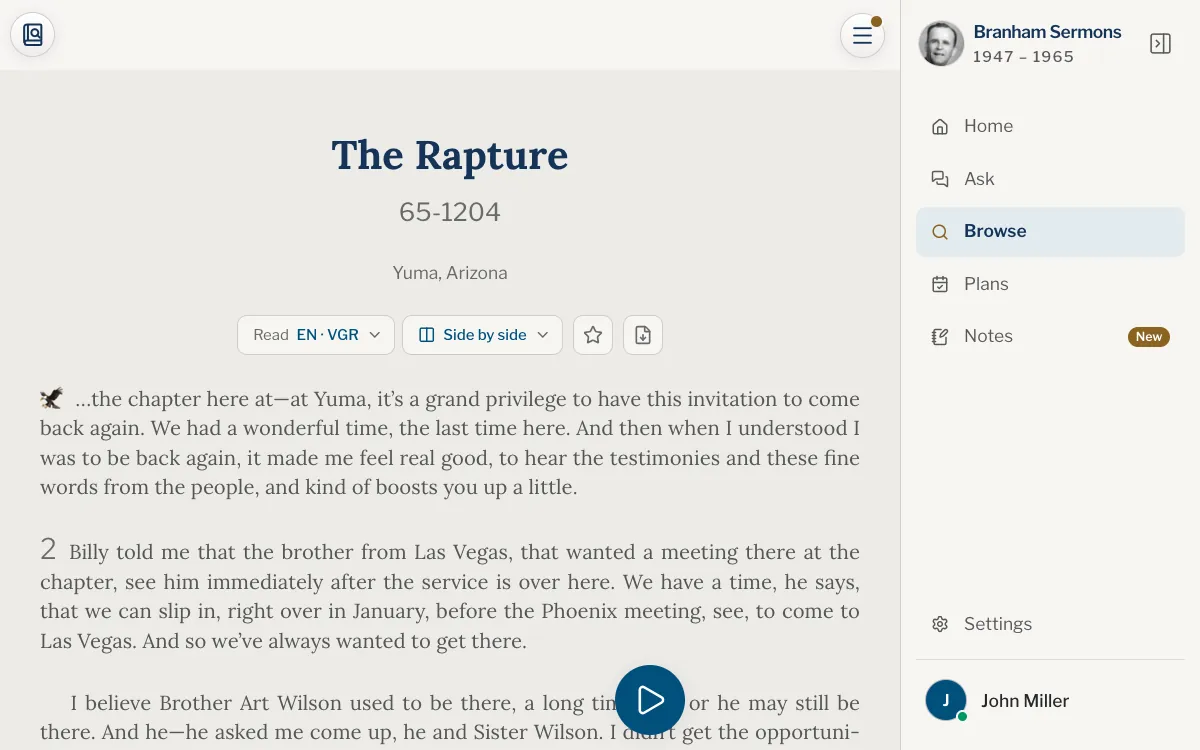
The top bar and the ☰ menu
Under the title are the menus to choose the text you read and the star and, on the website, a download button. Once the title has scrolled away, the bar at the top names the sermon with its code and title. Tap the name to show the version you are reading, and tap it again to hide it.
While words are selected, the bar says Selected: and the reference instead. See Highlight a passage.
Web
On a phone, tap the ☰ button at the top right of the screen: the sermon’s rows open from the bottom, above the site’s own menu. On a tablet or a computer, the ☰ at the right end of the bar opens a window in the middle of the screen. It holds, in three groups for the sermon, its text and the screen:
- Go to paragraph: the sermon’s paragraph numbers, opening on the one you are reading. Choose one to go there. On a long sermon, 2×, 3×, 5× and 10× show one paragraph in every 2, 3, 5 or 10.
- Scriptures read: the passages of the Bible he read out in this sermon, in order. Choose one to go to where he reads it. It shows only for a sermon that has some.
- Highlights and notes: the highlights and notes you made in this sermon.
- Languages: the sermon in your languages and versions, when it has more than one text.
- Side by side: two texts facing each other.
- Read along: how the words light up as they are said.
- Look and feel: text size, width, colours, text style and light or dark.
- Fullscreen Reading: a switch that lets the bars and the player slide away as you read.
- Projection Mode on a tablet or a computer, Landscape full screen on a phone.
App
Tap the ☰ at the right end of the bar. On an iPhone the menu opens from the bottom; on an iPad or a Mac it opens in the middle of the screen. It holds, in three groups for the sermon, its text and the screen:
- Go to paragraph: the sermon’s paragraph numbers, opening on the one you are reading. Choose one to go there. On a long sermon, 2×, 3×, 5× and 10× show one paragraph in every 2, 3, 5 or 10.
- Scriptures read: the passages of the Bible he read out in this sermon, in order. Choose one to go to where he reads it. It shows only for a sermon that has some.
- Highlights and notes: the highlights and notes you made in this sermon.
- Read in another language: the sermon in your languages and versions, when it has more than one text.
- Side by side: two texts facing each other, ticked while it is on.
- Read along: how the words light up as they are said.
- Look and feel: text size, width, colours, text style and light or dark.
- Fullscreen Reading: a switch that lets the bars and the player slide away as you read.
- Projection Mode on an iPad or a Mac, Landscape full screen on an iPhone.
Moving through the text
Each paragraph carries its number in the margin, the one a citation names: see Codes and paragraph numbers. Scroll as you would any page. On a phone a thin scroll bar shows where you are while you scroll, and a small arrow at the bottom right takes you back to the top once you are a long way down. To go straight to a paragraph, choose Go to paragraph in the ☰ menu, or search for its number:
- Tap the index and search button at the top left of the bar, or use the search that stays at the left on a wide screen.
- Choose Search, then This sermon.
- Type the words, or the number of a paragraph.
- Press Enter. A paragraph number takes you straight there; for words, pick a passage in the list.
The star and the PDF
The star under the title adds the sermon to your favourites, kept with your account; tap it again to remove it. See Favorites.
On the website, Download the text (PDF), beside the star, gives the text you are reading as a PDF on A4 pages, in any language. The app has no PDF button.
Why is there nothing in the bar when I open a sermon?
The bar names the sermon only once its title has scrolled out of view. The buttons on each side are there from the start.
Where is the ☰ menu on my phone?
At the top right of the screen on the website, and at the right end of the bar in the app. It opens from the bottom.
Can I download a sermon?
On the website, yes: Download the text (PDF) beside the star, in the language you are reading. In the library, choose a sermon in the list to download its text as a PDF, a booklet to print and fold in A4, A5 or US Letter or A4 pages in order, in any language, and its recording when it has one. To read without a connection, in the app or on the website, see Offline library.
Do I need an account to use the star?
Yes, favourites are kept with your account. Signed out, the star asks you to sign in. See Create an account.
How do I go to a paragraph number?
Open the search, choose This sermon and type the number, then press Enter. The steps are above.
Was this article helpful?
Still stuck?
Write to us with what you were doing and what you saw, and we will help.
Related articles
- Change the text size, colours and light or darkMake the sermon’s text larger or smaller, narrower or wider, choose reading colours, a typeface and light or dark, and see each change as you make it.
- Read in another language or versionSwitch a sermon between English, French, Spanish, Portuguese and Chinese at the same sentence, and learn what the codes VGR, SHP, MH and MH-B mean.
- Continue reading where you left offHow the site keeps your place in a sermon you have read for a while, where Home offers it again, and what does not count.