
Highlight a passage and choose its colour
Select sentences in a sermon, mark them in a colour or in bold, and find them again in your library. Works on the website and in the app.
On this page
Highlighting keeps a passage in a colour so that you can find it again. Select sentences in a sermon, tap a colour, and the passage stays marked on every device you sign in on.
Select a passage
Web
- Click a sentence, or drag across several with the mouse.
- Click another sentence if you want to take in more.
- Click a colour in the row of icons at the foot of the window.
App
- Tap a sentence, or hold one a moment and then drag across the others.
- Tap another sentence if you want to take in more.
- Tap a colour in the row of icons at the foot of the screen.
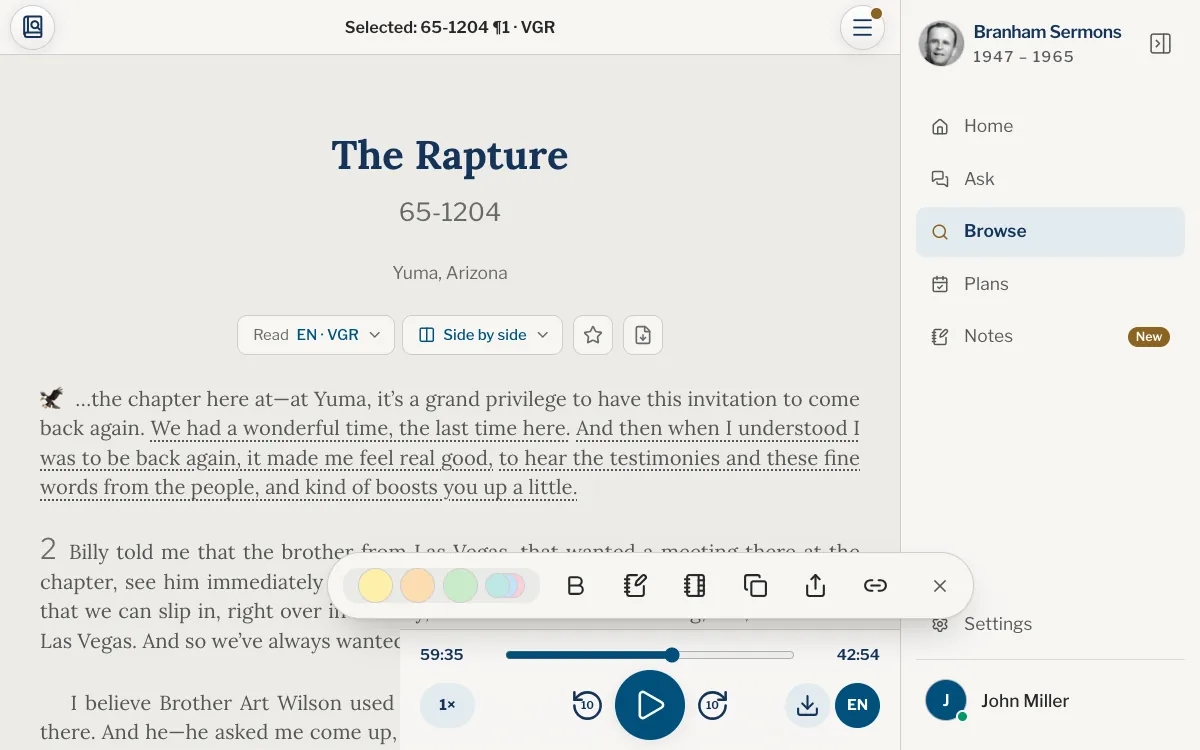
The selection is always one unbroken run in one text: choosing a sentence further away fills in the ones between, and choosing the first or last sentence of the selection takes it out. While it is there, the bar at the top reads Selected: and the passage’s reference.
Once you use an icon, the row goes away and the selection clears. To clear it without doing anything, swipe the row down or tap its cross (Clear selection).
What the row holds
- Three colours, then a stack of more. Tap the stack to lay out all seven colours and your own, with ⋯ (More colours) at the end.
- Bold keeps the passage in bold, with or without a colour. It then reads Remove bold.
- Add a note writes a thought on the passage: see Write a note on a passage.
- Add to a note sends the passage, with its reference, into a note of your own: see Notes: a notepad of your own.
- Copy, Share and Copy link take the passage out of the sermon: see Copy, share and link a passage.
On a phone each icon has its name under it, a shorter one where the full name is long (Note, Add to note, Link), and the row slides sideways to show the rest. On a tablet or a computer the row shows the icons alone: hold one a moment to see its name, or point at it with the mouse.
Change or remove a highlight
Select the highlighted passage again. The tick sits on its colour: tap the tick to take the highlight off, or tap another colour to change it. Only the sentences you selected change, so you can recolour or clear the middle of a long highlight.
Your highlights in a sermon are also listed in its menu, under Highlights and notes. Swipe one to the left, or open its ⋯, to delete it. It asks first.
Your own colours
Tap ⋯ at the end of the colours to make a colour of your own. Move over the colour square and the strip beside it, watch your words take that colour, then tap the check (Use this colour). Your colours are kept with your account. To remove one, tap the small cross on it in that screen (Remove this colour).
Where highlights are kept
A highlight shows in the other languages of the sermon too, on the sentences that translate it, and side by side the facing sentences are tinted as well. Everything you highlight is in your library, under Highlights, and under Passage notes once a note is written on it.
Highlighting needs an account with a confirmed email address, because the account keeps what you mark, not the browser. Signed out, a line above the row says Sign in to highlight. and leads to the way in. See every device.
Why am I asked to sign in when I highlight?
The account keeps your highlights, so they are there on every device and are not lost with a browser. Highlighting needs an account with a confirmed email address. Reading and searching do not.
Can I highlight a few words instead of a sentence?
No. A highlight covers whole sentences, one sentence at the smallest. Choose the sentences that hold the words you want.
How do I take a highlight off?
Select the passage again and tap the tick on its colour. Only the sentences you selected lose the highlight.
Will a highlight made in English show in the French text?
Yes, on the sentences that translate it, wherever the sermon is available in that language.
Where do I find everything I highlighted?
In your library, under Highlights, and under Passage notes for those with a note. Inside a sermon, open its menu and choose Highlights and notes.
Was this article helpful?
Still stuck?
Write to us with what you were doing and what you saw, and we will help.
Related articles
- Write a note on a passageAdd your own thought to a highlighted passage, find or change it later in your library, and see how it differs from a note in the Notes notepad.
- Copy, share and link a passageCopy a passage with its reference, share it, or send a link that opens the sermon at that paragraph. Also how to share a quote of the day or a plan.
- Find your favourites, highlights, notes and plansEverything you keep, and everything you left half done, is on You: favourites, highlights, notes, plans, reading, listening and your questions, with one search.