
Notes: a notepad of your own
Write notes by typing or by hand, quote the sermons into them with a slash, file them in folders, archive them, and share them as text or PDF.
On this page
Notes is a notepad of your own, apart from the thoughts you write on highlighted passages. Use it at home for devotion, at church while a sermon is preached, or to prepare a message. Type or write by hand, and quote the sermons into a note so that a tap takes you back to the paragraph.
Start a note
Web
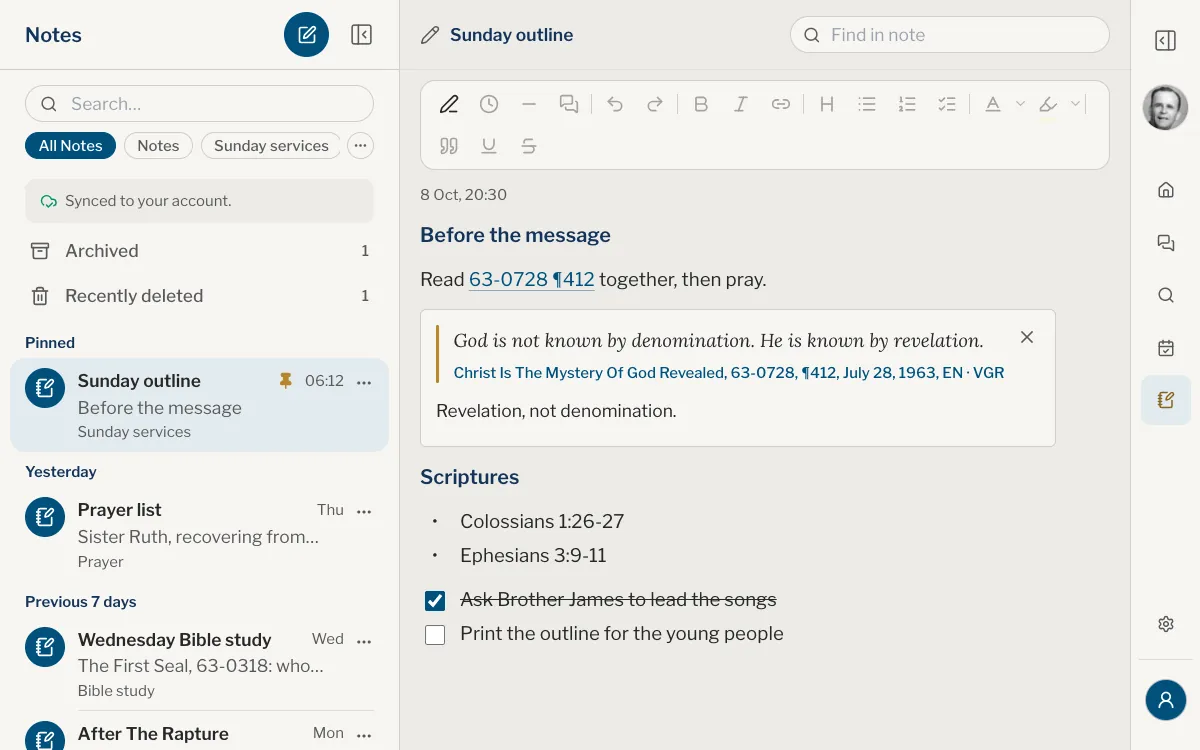
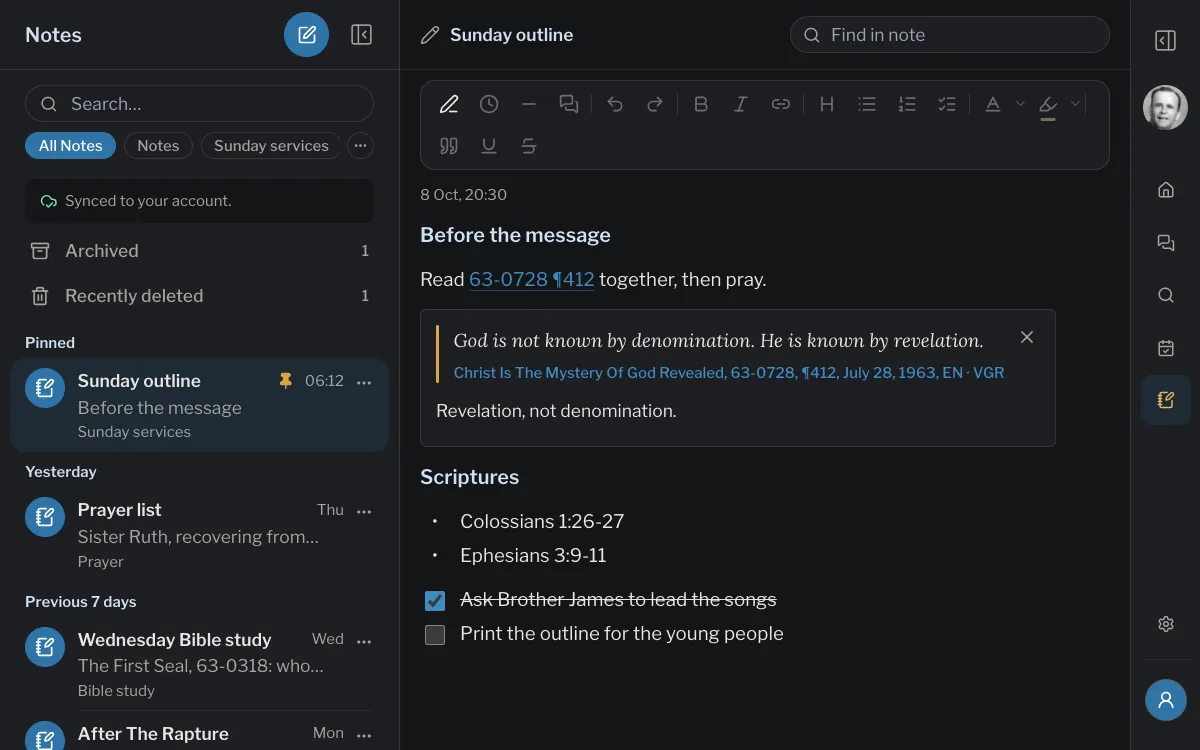
Open Notes in the menu, after Plans. It is laid out like Ask: the list of your notes on the left, the open note beside it, and Hide the list gives the note the whole width. On a phone the list opens over the page and closes when you choose a note; Show the list, at the top left, brings it back.
App
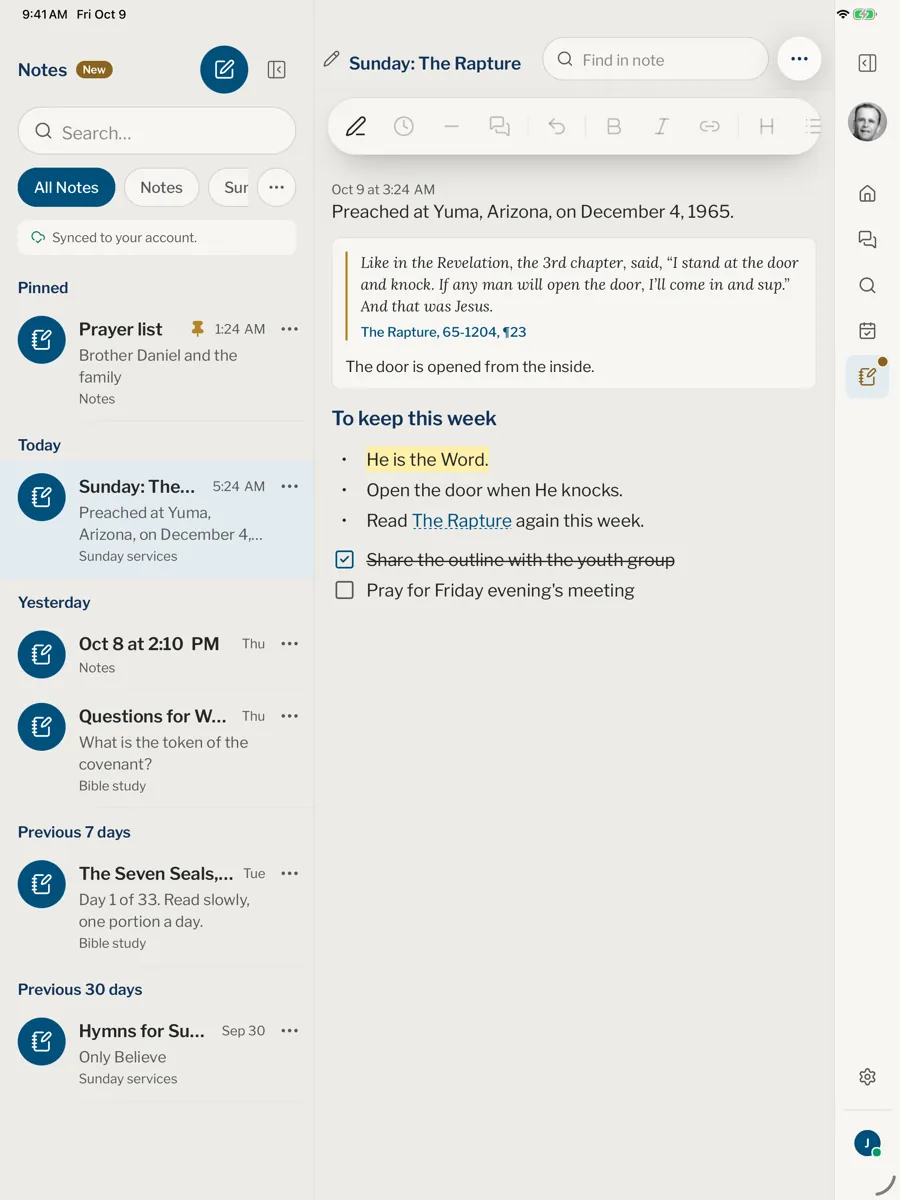
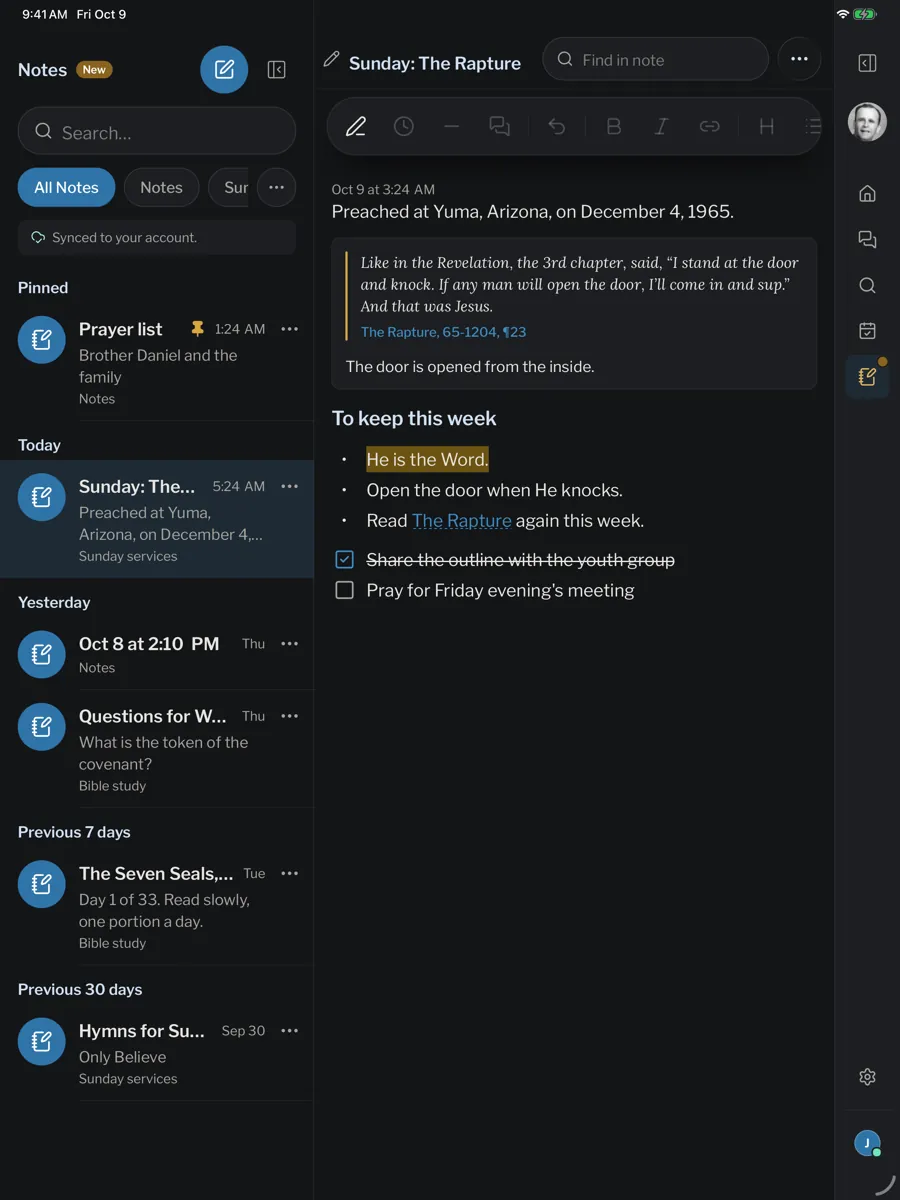
On iPad and Mac, open Notes in the panel on the right; the list of your notes stays beside the open note until you choose Hide the list. On iPhone, tap Notes in the tab bar, or find it as the first row of You until you add it there: open Settings, then Tab bar, and choose three of Ask, Browse, Plans and Notes in the order you like. A note opens over the list, and the round back button returns to it.
- Click or tap New note, the round button beside Notes at the top of the list.
- Type a title in the bar at the top of the note, beside the small pencil. Until you do, the note is named with the day and time.
- Write in the page, under the toolbar.
Web
App
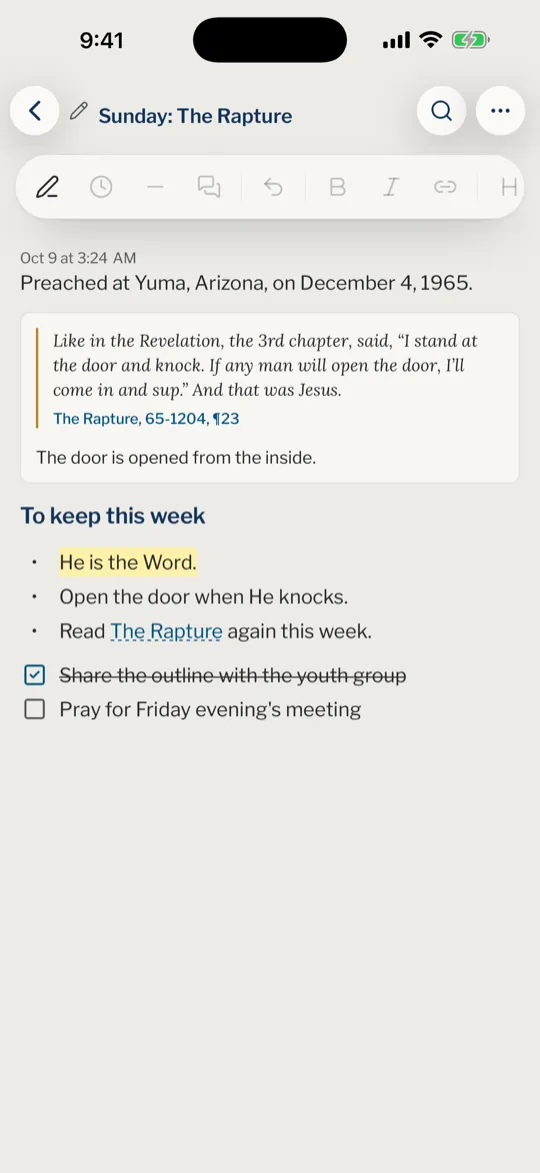
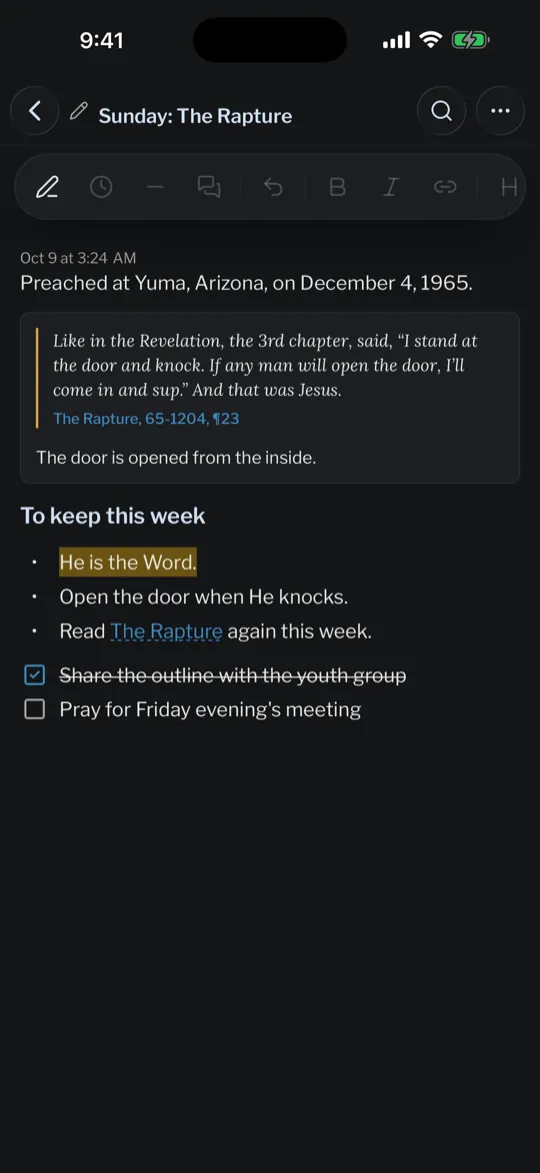
Write, by keyboard or by hand
Type
A note is a column of blocks. The toolbar turns the block you are in into a Heading, Bullets, Numbers, Checklist or Quote, and adds Bold, Italic, Underline, Strikethrough, a Text colour, a Highlight, a link, a Divider and Undo. It sits at the top of the note on the website, and above the keyboard in the app. When it runs past the edge of the screen, slide it sideways.
Tap Time to stamp the hour at your cursor, useful when you take notes as a service goes on.
Find in a note
On a wide screen, Find in note stands at the top right of the note. On a phone, tap the magnifier there. Type a word: each place it appears is marked and counted, and Enter (Search on a phone’s keyboard) goes to the next one.
Write by hand
Tap Handwrite in the toolbar to add a handwritten page, which opens on a page of its own. Write with a pen, a finger or, on a computer, the mouse. Choose Pen, Highlighter or Eraser, a colour and Thin, Medium or Thick, and use Undo and Redo. When a page is full, it says so and offers New page.
Web
- Choose Blank, Ruled or Grid in the paper menu at the foot of the page.
- Draw with a finger is on by default on a phone and off on a tablet or computer: tick or untick it. Once a pen touches the page, it switches itself off.
App
- Tap ⋯ (Paper and more) to choose Blank, Ruled or Grid paper.
- There too, turn Draw with a finger on or off. It starts on for an iPhone and off for an iPad or Mac. Once a pen touches the page, it switches itself off.
Quote the sermons and ask about them
Quote a sermon
- Type / at the start of a line or after a space.
- Type a sermon code, such as 63-0318, or a few words of its title, and choose the sermon from the suggestions.
- A # appears after the sermon: choose a paragraph from the list, or type its number to narrow it down. The whole sermon is offered too.
- The reference becomes a link, 63-0318 ¶12. Tap it, or point at it on a computer, and a card shows the paragraph: Read here adds the paragraphs around it, Quote in the note puts it in your note, and Open reads it in the reader.
Typed in full, /63-0318 #12 becomes the same link as soon as you press the space bar or a punctuation mark, or leave the line. The link opens the paragraph in your first sermon language, or in another of your languages with Open in another language. See codes and paragraphs.
You can also quote from the reader: select a passage, tap Add to a note, then choose New note or one of your notes. The passage arrives with its reference and a line to write under it.
Ask about what you wrote
Select some of the words you wrote and tap Ask about this in the toolbar. They go to Ask as a new conversation, opened over your note, and in the note they become a link to it. Point at those words on a computer, or tap them, and a card shows the conversation: Read here shows the rest of the answer in the card, and Open goes to the conversation.
Links and shortcuts
A link makes itself
A reference such as /63-0318 #12, or a web address that starts with https:// or www., becomes a link when you press the space bar after it. There are no brackets or marks in the words, and deleting or adding words inside a link keeps it a link; words you type right after it stay plain. A link goes only when you delete all of its words.
Web
The link is tinted and underlined under the words as you write. Ctrl Z or ⌘ Z straight afterwards gives back what you typed, without the link.
App
The words are not coloured while the keyboard is up, so a short line says Linked to …, with Undo, for a few seconds. A reference typed in full is written as 63-0318 ¶12 when you pause or leave the line.
Change or remove a link
Tap or click inside a link and a small bar names where it goes and offers Open, Open in another language (for a passage, when you read in more than one language), Edit link and Remove link. Edit link changes the words and where the link goes: a web address, or a sermon and paragraph such as 63-0318 ¶12.
To make a link from words you already wrote, select them and tap the link button in the toolbar, or on a computer press Ctrl K or ⌘ K. Pasting a web address over selected words links them.
Web
- On a computer, Ctrl or ⌘ and a click opens a link at once. A right click over a link or over selected words opens a menu of the same actions, with Cut, Copy, Bold, Italic and Ask about this. Hold Shift while you right click to see your browser’s own menu instead, with its spelling suggestions.
- In Browse, a right click on a sentence selects it and shows the bar of actions that a tap shows. Shift and a right click shows the browser’s menu.
App
- Press and hold a link in a note to see the same actions in a sheet.
Start a list as you type
At the start of a line, type one of these and a space:
- -, ***, + or • for Bullets**
- 1. or 1) for Numbers
- [] for a Checklist
- # for a Heading
- > for a Quote
- --- and Enter for a Divider
A number such as 1963 or 12 is left as it is, so a year or a paragraph number at the start of a line is safe. To keep the characters you typed instead, tap Undo in the toolbar, or on a computer press Ctrl Z or ⌘ Z straight afterwards.
Tap ? (Shortcuts), the last button of the toolbar, to see all of these again, / and # included.
The list and its folders
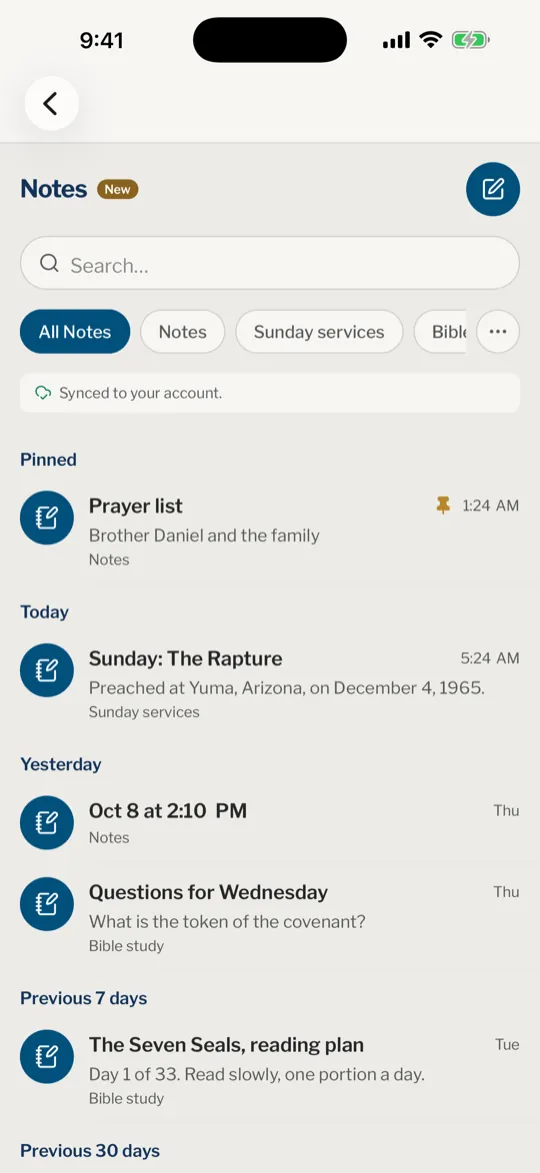
At the top of the list are a search box and a row of folders: All Notes, Notes for the notes in no folder, one for each folder you make, and + to make one. Under the row, a line says Synced to your account. when your notes are safe on your account.
The notes follow, grouped Pinned, Today, Yesterday, Previous 7 days, Previous 30 days, then by month and year. Each row shows the title, when you last wrote in it and its first line; under All Notes it also names its folder. A new note lands in Notes, or in the folder you have open.
The search box finds words in titles and typed text, in the folder you have chosen and among the notes you have archived: choose All Notes to search everything.
Folders
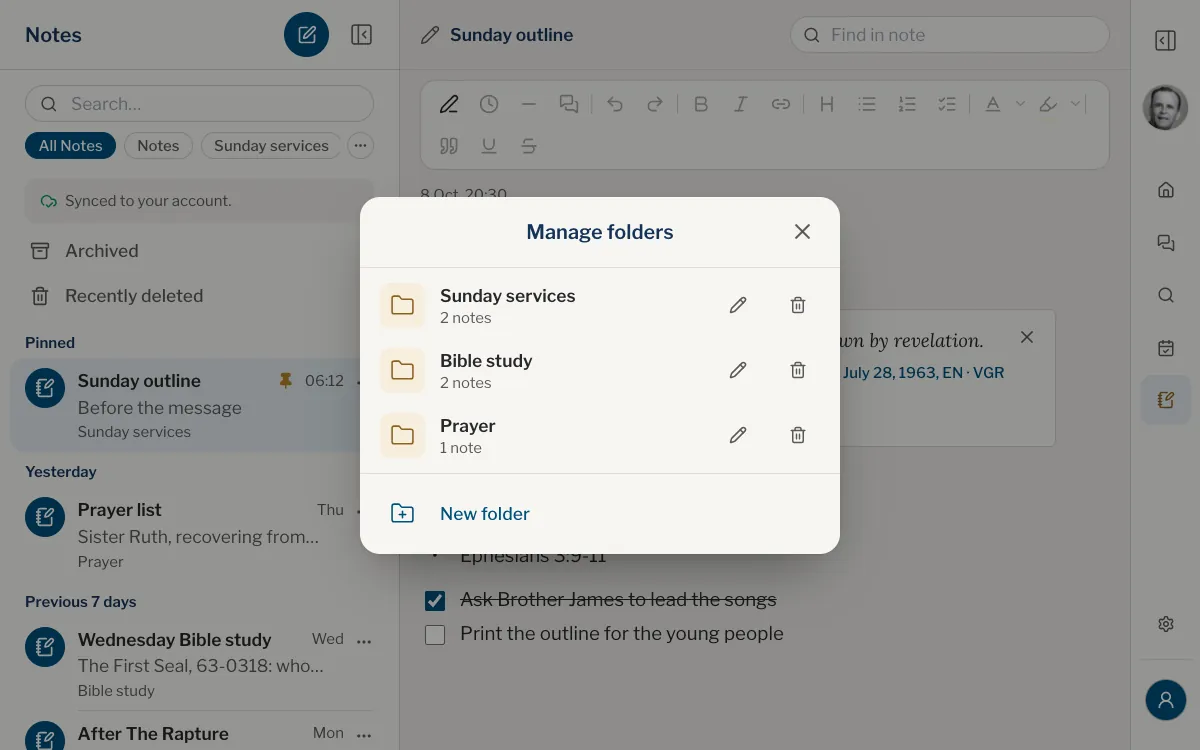
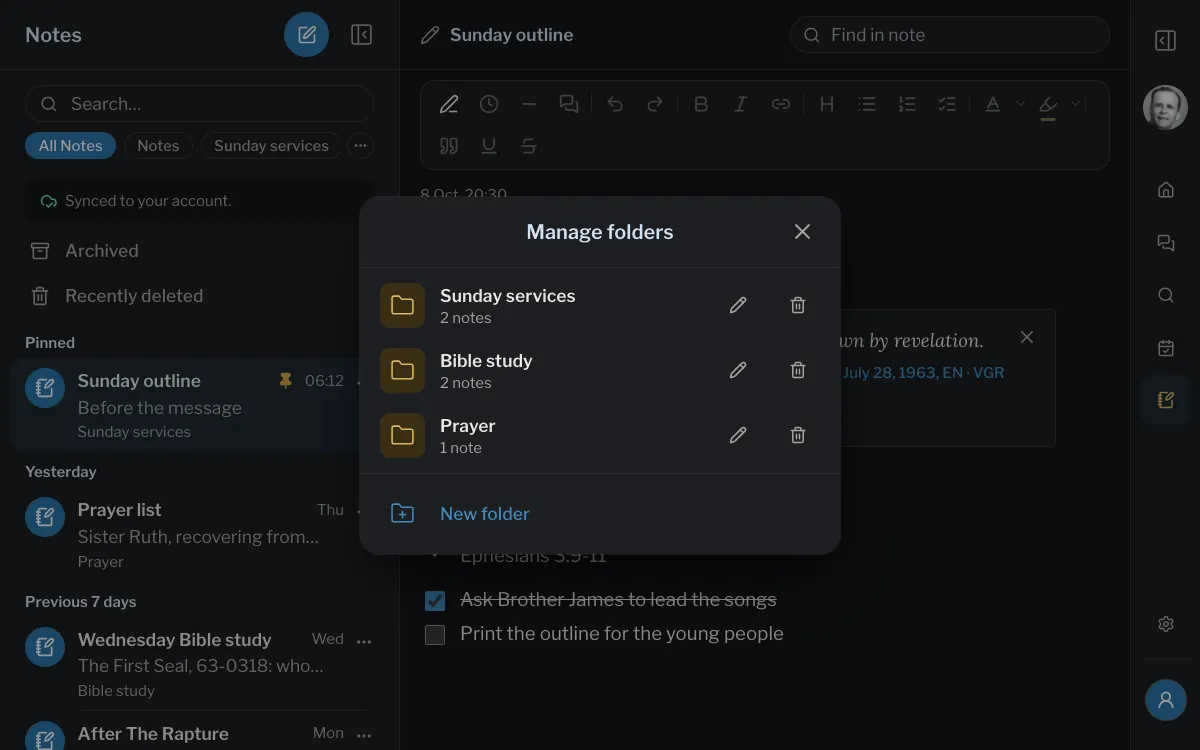
Choose + at the end of the row to make a folder. Once you have one, a ⋯ after the row opens Manage folders: every folder with the number of notes in it, a pencil (Rename) and a bin (Delete folder) beside each, and New folder at the foot. Deleting a folder moves its notes to Notes. To file a note elsewhere, open its menu and choose Folder.
Web
App
Pin, share, archive and delete
Web
- Open a note’s ⋯ in the list. It offers Pin, Folder, Archive, Share as text, Copy text and Delete. On a phone, swipe a note to the left to delete it.
- On a phone or a narrow window, the ⋯ at the top of the open note offers the same, with Print or save as PDF. On a wide screen, your browser’s own print (Ctrl P or ⌘ P) prints the note, or saves it as a PDF.
App
- Press and hold a note in the list (on iPad and Mac, its ⋯ too), or tap ⋯ at the top of an open note. It offers Pin, Folder, Archive, Copy text and Delete. Swipe a note to the left to delete it, or to the right to archive it.
- Share as text and Share as PDF open the share sheet.
Archive puts a note away without deleting it: it leaves All Notes and its folder. Once you have archived a note, an Archived row with the number of notes in it appears under the folders. It opens in the list itself, with an arrow at the top to come back; open a note there and choose Unarchive to send it back to its folder. An archived note is not pinned, and a search still finds it and marks it Archived.
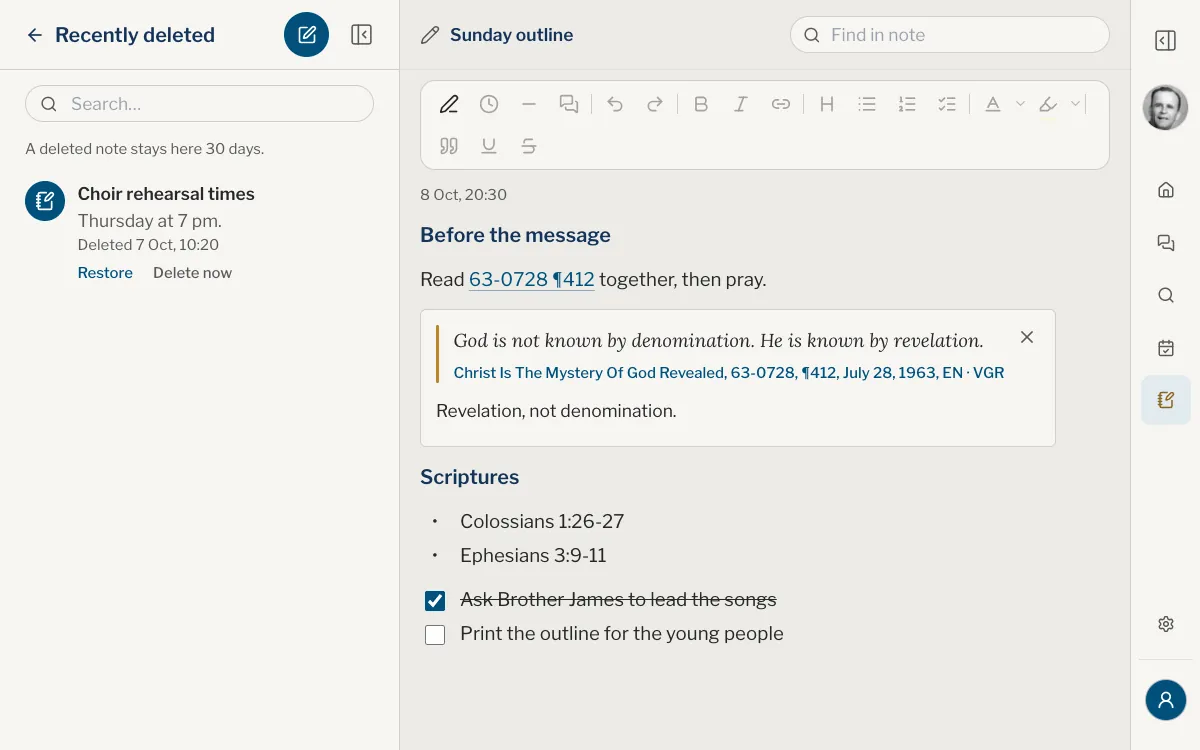
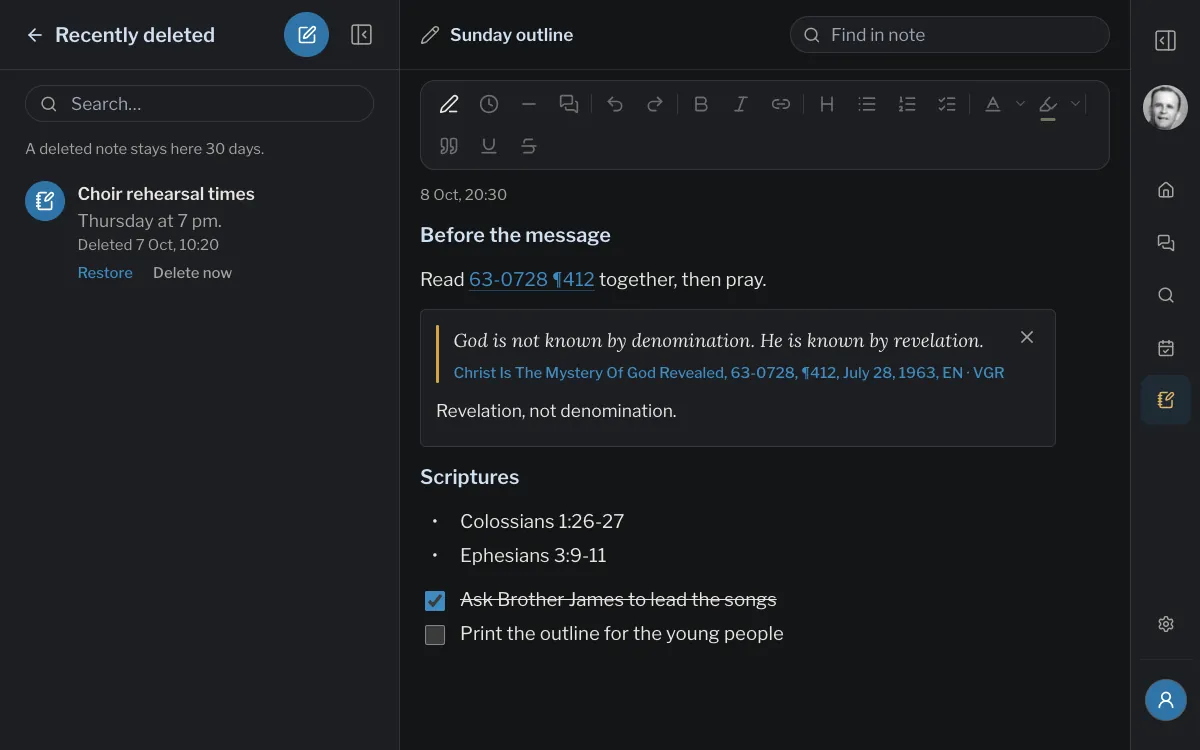
Delete moves a note to Recently deleted, where it waits 30 days. That row appears under the folders once you have deleted something, and opens in the list the same way. Each note there has Restore, which brings it back, and Delete now, which removes it for good.
Kept on your account
Notes needs an account with a confirmed email address. Signed out, the list shows a line to sign in instead of New note. Each change is written on your device first and sent to your account when there is a connection, so a note written offline is not lost, and the same notes appear on the website and in the app. The line under the folders says Syncing… while it sends, and asks you to check your connection when it cannot.
Why did my words turn into a link?
A reference such as /63-0318 #12, or a web address, becomes a link when you press the space bar after it. To undo it at once, tap Undo (on a computer, Ctrl Z or ⌘ Z). Later, tap the link and choose Remove link.
I changed some of the words of a link. Is it still a link?
Yes, and it still goes where it went. To change that, tap it and choose Edit link.
I cannot find the New note button. Why?
Without an account with a confirmed email address, the list shows Sign in to keep notes. in its place. Sign in, or confirm your address, and the button appears.
Where did a note I archived go?
Under Archived, the row under the folders. A search finds it too, marked Archived. Unarchive sends it back to its folder.
What if I change the same note on two devices?
Each note is saved as a whole, so if you change it on two devices at about the same time, the later save is kept. Write on one device at a time.
Does search read my handwriting?
No. Search looks at titles, typed words and quoted passages, not at handwritten pages.
Was this article helpful?
Still stuck?
Write to us with what you were doing and what you saw, and we will help.
Related articles
- Write a note on a passageAdd your own thought to a highlighted passage, find or change it later in your library, and see how it differs from a note in the Notes notepad.
- Ask a question and read the answerDescribe what you are looking for in your own words and get an answer made only from the sermons, every point with its sermon and paragraph.
- Use your library on more than one deviceWhat follows your account to every phone, tablet and computer, what each device keeps for itself, and how to sign in on a second one.