
Write a note on a passage
Add your own thought to a highlighted passage, find or change it later in your library, and see how it differs from a note in the Notes notepad.
On this page
A note on a passage is a thought written under a highlight, so the words and your thought stay together. A highlight and a note differ by one act: the passage is kept the moment you mark it, and the note is written then or added later.
Write a note
- Select the passage.
- In the row of icons at the foot of the screen, tap Add a note.
- Write your thought in the box.
- Tap the check (Save) to keep it.
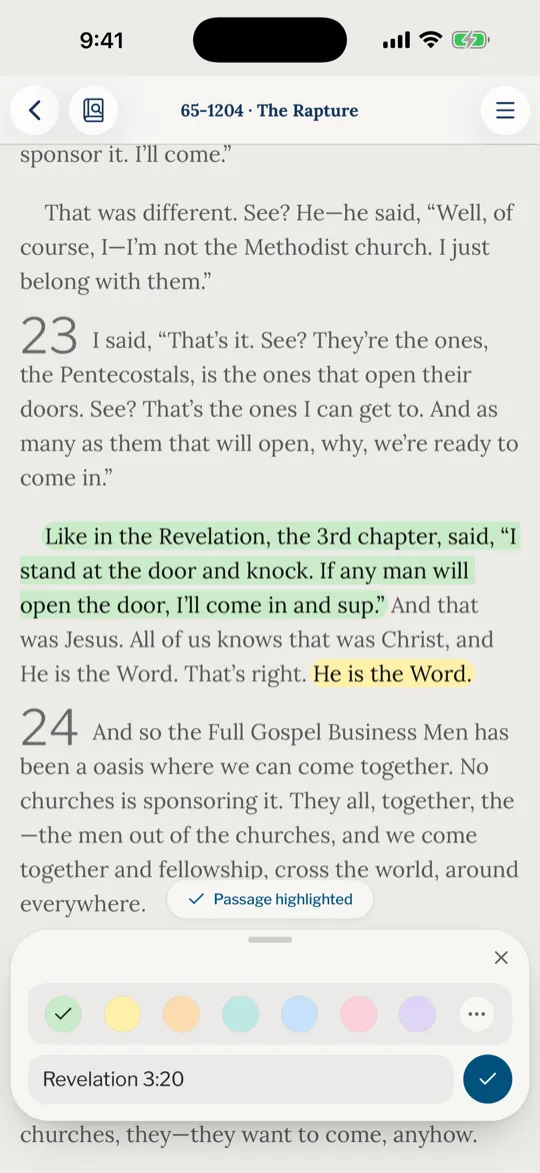
A passage that was not highlighted yet is highlighted by asking for a note, in the colour you used last. Choose another colour in the box and the highlight changes with it. Close puts the box away without saving what you typed, and the passage stays highlighted.
Web
Press Enter to save the note, or Shift and Enter for a new line. In a wide window the box is ready to type in. In a narrow one, click it first.
App
On an iPhone held upright, tap the box before you type, so the keyboard does not cover the passage you just marked. Held sideways in side by side, the note opens on a page of its own, clear of the keyboard.
Find, change or delete it
Select the passage again: the icon now reads Edit note. Your notes on passages are also listed in your library under Passage notes, and in the sermon’s menu under Highlights and notes. In your library, open a row’s ⋯ menu to edit the note, copy or share the passage, or delete it.
- To change a note, choose Edit note, change the words and tap Save.
- To remove only the note, empty the box and save. The passage stays highlighted.
- To delete the highlight and its note, choose Delete highlight and confirm.
A note on a passage and the Notes notepad
A note on a passage belongs to one highlight. Notes in the menu is a separate notepad of your own, with pages, folders, handwriting and quoted passages: see Notes: a notepad of your own.
| What | Note on a passage | Note in Notes |
|---|---|---|
| Starts from | A highlighted passage | A blank page, or a passage sent with Add to a note |
| Found in | Passage notes in your library, and Highlights and notes in a sermon | Notes in the menu, in folders |
| Holds | A short written thought | Typed text, handwriting and quoted passages |
| If the highlight is deleted | The note goes with it | Nothing changes |
To put a passage into a notepad note, select it and tap Add to a note, then choose a note or New note. The passage arrives with its reference, and a tap on it opens the paragraph.
Is a note the same as a highlight?
No. A highlight keeps a passage in a colour. A note is a thought you write on it, if you want one. A passage can be highlighted with no note.
Can I write a note without highlighting?
A note on a passage always sits on a highlighted passage, so asking for a note highlights it. To write freely, with no passage, use Notes.
Where did my note go?
Look under Passage notes in your library. A highlight with no note is under Highlights. If you deleted the highlight, its note went with it.
Do my notes follow me to another device?
Yes, once you are signed in. The account keeps them, so they appear on the website and in the app. See every device.
Was this article helpful?
Still stuck?
Write to us with what you were doing and what you saw, and we will help.
Related articles
- Highlight a passage and choose its colourSelect sentences in a sermon, mark them in a colour or in bold, and find them again in your library. Works on the website and in the app.
- Notes: a notepad of your ownWrite notes by typing or by hand, quote the sermons into them with a slash, file them in folders, archive them, and share them as text or PDF.
- Find your favourites, highlights, notes and plansEverything you keep, and everything you left half done, is on You: favourites, highlights, notes, plans, reading, listening and your questions, with one search.