
Use your library on more than one device
What follows your account to every phone, tablet and computer, what each device keeps for itself, and how to sign in on a second one.
On this page
Your account keeps your library and your settings, so a new device shows them as soon as you sign in. Text size and reader width are kept twice: once for your phones, and once for your tablets and computers.
Sign in on a second device
- Open the website, or the app, on the other device.
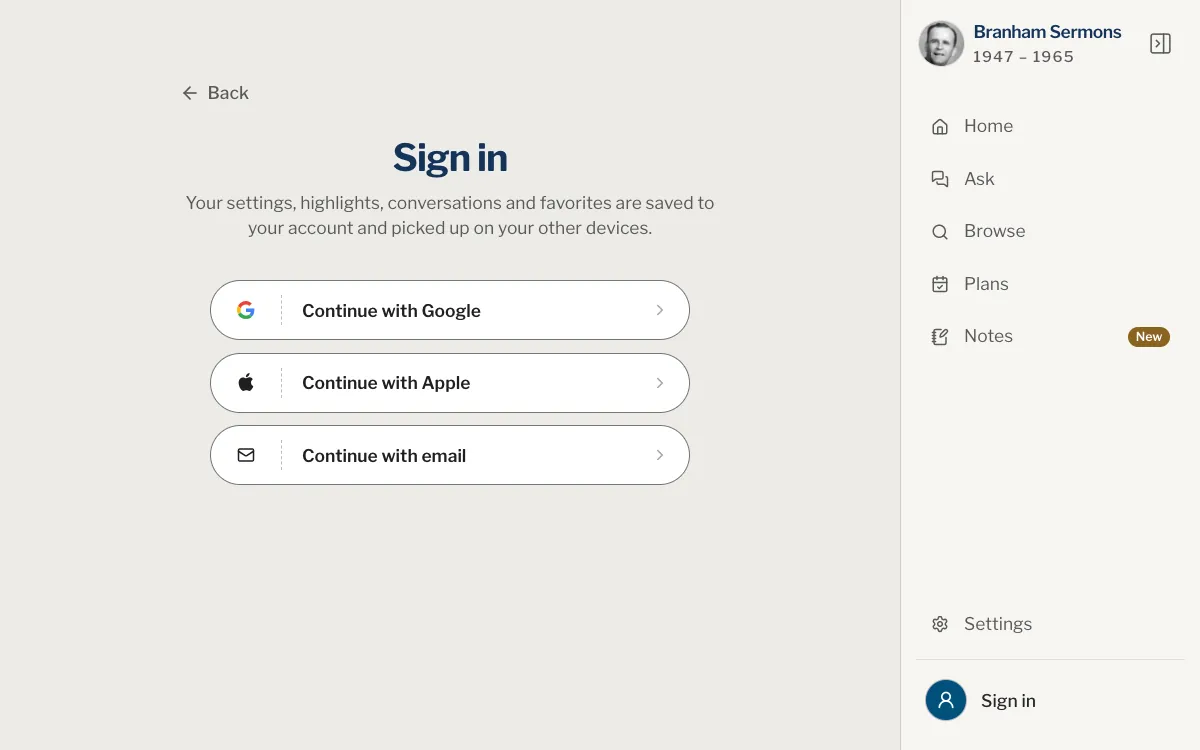
- Sign in the way you did the first time: Continue with Google, Continue with Apple, or your email and password.
- Open You and give it a moment. Your favourites, highlights, plans and the rest arrive in the background.
What follows your account
| What | Where it is kept |
|---|---|
| Favourites, highlights and notes | Your account |
| Reading plans and your progress in them | Your account |
| Conversations, with their folders, and your past searches | Your account |
| Where you stopped reading, after about five minutes, and listening | Your account |
| Badges | Your account |
| Interface language, sermon languages, light or dark, your own highlight colours and, in the app, the tab bar | Your account |
| Your name and photo | Your account |
| Text size, reader width, Fullscreen Reading and the Projection Mode settings | Your account, one set for phones and one for tablets and computers |
| Reading colours, the typeface and the Read along style | Your account |
| Sermons kept for reading without a connection | This device only |
Changes are saved as you make them and can take a moment to arrive. In the app, pull down on You, Plans, or the Ask or Notes list to ask for them again. On the website, pull down on the Ask or Notes list on a phone or tablet, or reload the page.
Your name and photo belong to the account too. Change them on My account on the website, or Edit profile in the app. See Your profile.
Signing in another way
You can sign in with Google, with Apple, or with an email and a password. Use the same way each time. If you try another way with an address that already has an account, the page may say An account already exists for this email, opened another way. Try one of the other ways in. Go back to the way you used before.
Apple’s Hide My Email gives the site a private address instead of your own. An account made with it is not the same as one made with your real address, so the same person can end up with two. If you think that happened to you, write to us and tell us how you signed in each time.
Without a connection
Signing in, asking a question and saving to your account need a connection. What you change without one is kept on the device and saved to your account when the connection returns.
I signed in on a new device and my library is empty. Why?
Check that you used the same account and that its address is confirmed. Then give it a moment and pull down on You, or reload the page. See when your library looks empty.
Do my text size and colours follow me?
Yes. Your phones share one text size and reader width, and your tablets and computers share another, so you can read large on a tablet and small on a phone. Reading colours, the typeface and light or dark are the same on every device.
Can I use the website and the app with the same account?
Yes. They read the same library, plans and conversations.
What if I use the website without signing in?
You can browse, search and read. Your conversations and settings stay on that browser or device, but favourites, highlights, notes and plans need an account.
Was this article helpful?
Still stuck?
Write to us with what you were doing and what you saw, and we will help.
Related articles
- Create an account and sign inWhat you can do without an account, what an account keeps, how to sign in with Google, Apple or email, and how to sign out.
- Something is missing from my libraryWhen highlights, notes, favourites, plans or conversations don’t show: check the account, the confirmed address, the sync, and where each kind of item is listed.
- Settings: where they are and what they doOpen Settings on the website or in the app, and see what each setting changes: appearance, languages, reminders, the sermons kept on your device, and where Help is.