
Create an account and sign in
What you can do without an account, what an account keeps, how to sign in with Google, Apple or email, and how to sign out.
On this page
You can browse, search, read and listen without an account. An account is what keeps your things: your conversations, highlights, favourites, notes, plans and the place where you stopped, on every device you sign in on. It is free.
With and without an account
| What you do | Without an account | With an account |
|---|---|---|
| Browse, search and read the sermons | Yes | Yes |
| Listen to the recordings | Yes | Yes, and each recording picks up where you left off |
| Ask questions | A few of your own a day, and the examples as often as you like | More room each day, once your email is confirmed |
| Conversations | Kept on this device only | Kept on your account, in folders, on every device |
| Highlights, favourites, notes and plans | They need an account | Kept on your account, on every device |
| Badges and settings | Settings stay on this device, and badges need an account | Follow you on every device |
With Google or Apple your address is confirmed at once. With an email address, you confirm it from a link we send, and until then nothing you keep is saved to your account: confirm your email.
Create your account
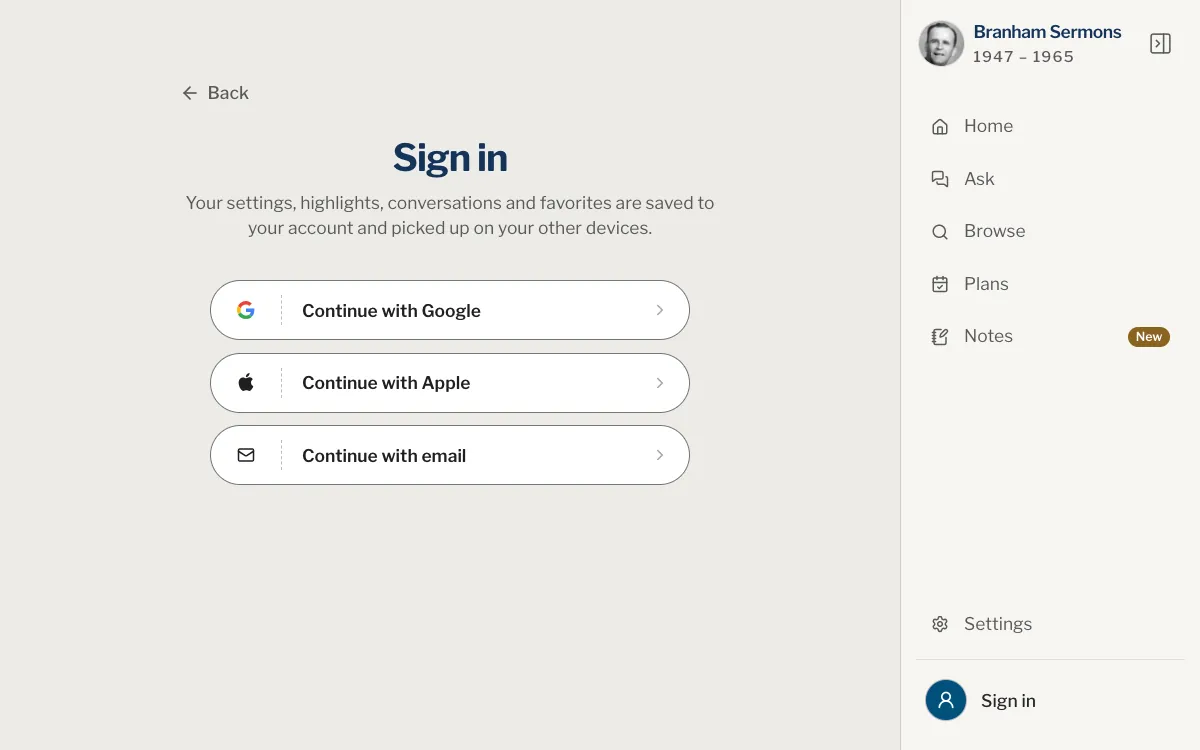
There are three ways in: Continue with Google, Continue with Apple and Continue with email. With Google or Apple, choose the button and approve in the window that opens: you are signed in, with no password to choose. The same buttons sign you in again later. The steps below are for an email address.
Web
- Open the sign-in page, or choose Sign in in the account row at the foot of the panel.
- Choose Continue with email.
- If the page is titled Sign in, choose Don't have an account? Create an account.
- Enter your first name, last name, email address and a password of at least 8 characters, then the password again.
- Choose Create an account.
- Open the email we send you and follow its link to confirm your address.
App
- Open You and tap Sign in. On iPad and Mac, open the account row at the foot of the sidebar and choose Sign in.
- Tap Continue with email.
- If the page is titled Sign in, tap Don't have an account? Create an account.
- Enter your first name, last name, email address and a password of at least 8 characters, then the password again.
- Tap Create an account.
- Open the email we send you and follow its link to confirm your address.
Sign out
Signing out takes nothing away: what you kept comes back when you sign in again.
Web
Open the account row at the foot of the panel, choose Sign out, and confirm when asked Sign out?
App
On iPhone, open You, tap My account under your name, then Sign out. On iPad and Mac, open the account row at the foot of the sidebar and choose Sign out. Confirm when asked Sign out?
One account on every device
Sign in the same way on the website, on your iPhone, iPad or Mac, and what you kept is there on each of them: conversations, highlights, favourites, notes, plans and settings. See how it works across devices.
Do I need an account to use Branham Sermons?
No. You can browse, search, read and listen, and ask a few questions of your own a day, without one. You need an account to keep highlights, favourites, notes and plans, and to have your conversations on every device.
Which way of signing in should I choose?
Any of them. Google and Apple need no password and no confirmation. Email needs a password and a confirmed address. If you signed up one way, use that same way again.
It says an account already exists for my email. What now?
That address was first used with another way in, such as Google, Apple or a password. Try the other buttons on the sign-in page, or see Can’t sign in.
Why must I confirm my email?
Until you do, nothing you keep is saved to your account, and a confirmed account has more room each day. The link is in the email we send when you create the account: confirm your email.
I forgot my password.
On the sign-in page, choose Forgot your password?, enter your email address and choose Send reset link. If nothing arrives, see Can’t sign in.
Was this article helpful?
Still stuck?
Write to us with what you were doing and what you saw, and we will help.
Related articles
- Your profile: name, photo, email and passwordChange your name and photo, check that your email address is confirmed, reset a forgotten password and sign out, on the website and in the app.
- Confirm your email addressWhy an address is confirmed, what the message looks like, what to do when it doesn’t arrive, and what works until you have confirmed it.
- Use your library on more than one deviceWhat follows your account to every phone, tablet and computer, what each device keeps for itself, and how to sign in on a second one.