
Your profile: name, photo, email and password
Change your name and photo, check that your email address is confirmed, reset a forgotten password and sign out, on the website and in the app.
On this page
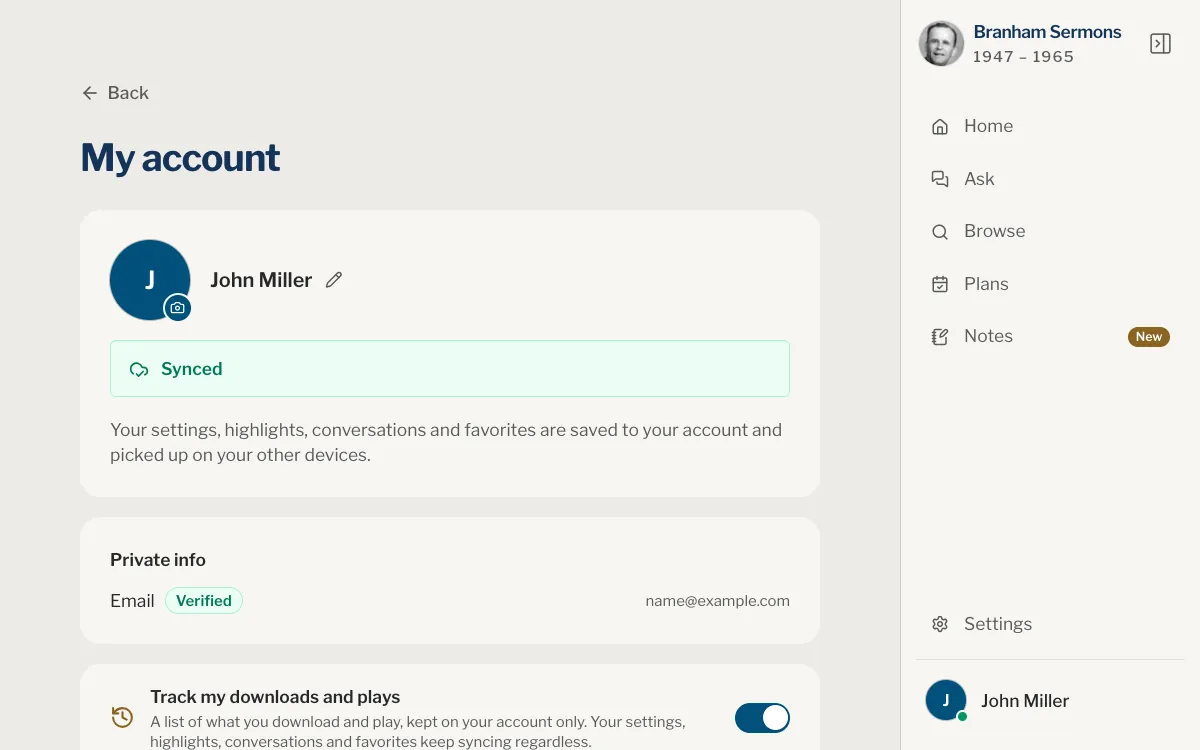
Your profile is the name and photo shown on your account, and the email address you signed up with. Use it to change the first two, to check that your address is confirmed, and to sign out. Your first name is also the one Home greets you with.
Find your account page
Web
- Click your photo and name at the foot of the panel on the right. On a narrow screen, open the menu first.
- Choose Profile.
- Under your name, choose My account.
App
- Open the You tab.
- Under your name, tap My account.
On iPad and Mac, choose your photo and name at the foot of the sidebar, then Profile.
Change your name and photo
Your name
Web
- On My account, click the pencil beside your name.
- Type your First name and your Last name.
- Click the tick, or press Enter, to save.
App
- On My account, tap Edit profile.
- Change your First name and your Last name.
- Tap Save, at the top of the page.
A first name is required; a last name is optional. Your name is kept with the account, so it changes everywhere you sign in.
Your photo
Web
- On My account, click your photo. If you have none yet, your file chooser opens: go to step 3.
- In the large view, open the ⋯ menu and choose Change photo.
- Choose a picture from your computer.
- Drag it to place it in the circle. Zoom in with the slider or the mouse wheel, or zoom all the way out to keep the whole picture.
- Click Save.
App
- On My account, tap Edit profile.
- Tap your photo, then Take a photo or Choose a photo.
- Drag the photo to place it in the circle and pinch to zoom. Whole photo keeps all of it in view; Fill the circle fills the circle.
- Tap Save.
The circle shows exactly what will be saved. Click or tap your photo on You to see it large. Remove photo is offered for a photo you added yourself, and takes you back to your initial, or to your Google photo if you sign in with Google.
On My account, above Download my data, the switch Track my downloads and plays keeps a list of what you download and play, on your account only. It is on until you turn it off. Turning it off changes only that list: your settings, highlights, conversations and favourites keep saving to your account as before.
Email and password
Your email address
Your address is shown under Private info on My account (in the app, on Edit profile), with Verified or Not confirmed beside it. If you opened your account with an email and a password, nothing you keep is saved to the account until you open the link we sent you. Choose Resend confirmation email if it has not come. See Confirm your email address.
The page shows your address but does not change it. To use another address, write to us.
Reset your password
There is no password field on your account page, and no button to change a password while you are signed in: a new password is set from the link in an email. If you opened your account with Continue with Google or Continue with Apple, you have no password here. Use the same button each time you sign in.
- Open the sign-in page. If you are signed in, sign out first.
- Choose Forgot your password?
- Type your email address and choose Send reset link.
- Open the link in the email we send. On an iPhone or iPad with the app installed, it can open in the app.
- Choose a new password of at least eight characters, type it again under Confirm password, and choose Change password.
- Sign in with the new password.
Sign out
Web
- Click your photo and name at the foot of the panel on the right.
- Choose Sign out, then confirm.
App
- On My account, tap Sign out.
- Confirm.
On iPad and Mac you can also choose your photo and name at the foot of the sidebar, then Sign out.
You are asked Sign out? first. Everything stays safe in your account and is back when you sign in again.
Can I change my email address?
Not from the account page: it shows your address but offers no way to change it. Write to us if you need another address.
Why can I not add a photo?
A photo needs a confirmed email address. Open the link we sent you, or choose Resend confirmation email. The camera badge then appears on your photo.
I did not get the password email. What now?
The page gives the same answer whether or not an account exists for the address, so check that you typed it correctly, and look in your spam folder. If you signed up with Google or Apple, use that button instead.
Where does my name appear?
Your first name is in the greeting on Home. Your full name shows on My account, on You, and at the foot of the panel on the right on the website or of the sidebar on iPad and Mac.
Does signing out delete anything?
No. Everything stays safe in your account and comes back when you sign in again.
Was this article helpful?
Still stuck?
Write to us with what you were doing and what you saw, and we will help.
Related articles
- Create an account and sign inWhat you can do without an account, what an account keeps, how to sign in with Google, Apple or email, and how to sign out.
- Settings: where they are and what they doOpen Settings on the website or in the app, and see what each setting changes: appearance, languages, reminders, the sermons kept on your device, and where Help is.
- Delete your accountWhere to find Delete account on the website and in the app, how to download your data first, what happens after you confirm, and what is deleted and what is kept.