
Settings: where they are and what they do
Open Settings on the website or in the app, and see what each setting changes: appearance, languages, reminders, the sermons kept on your device, and where Help is.
On this page
Settings holds what applies to the whole site or app: how it looks, which languages it uses, reminders, and the sermons kept on your device. How a sermon reads, such as text size and colours, is set from the reader instead. See Look and feel.
Open Settings
Web
- Click Settings in the panel on the right, just above your photo. On a narrow screen, open the menu first.
- Choose a row. Each opens a page of its own in the same window, and the two language pages have a Find a language box.
- Use the arrow at the top left to go back, and ✕ to close the window.
App
- Open the You tab.
- Tap the gear at the top right.
- Tap a row. Each opens a page of its own, and the arrow at the top left brings you back.
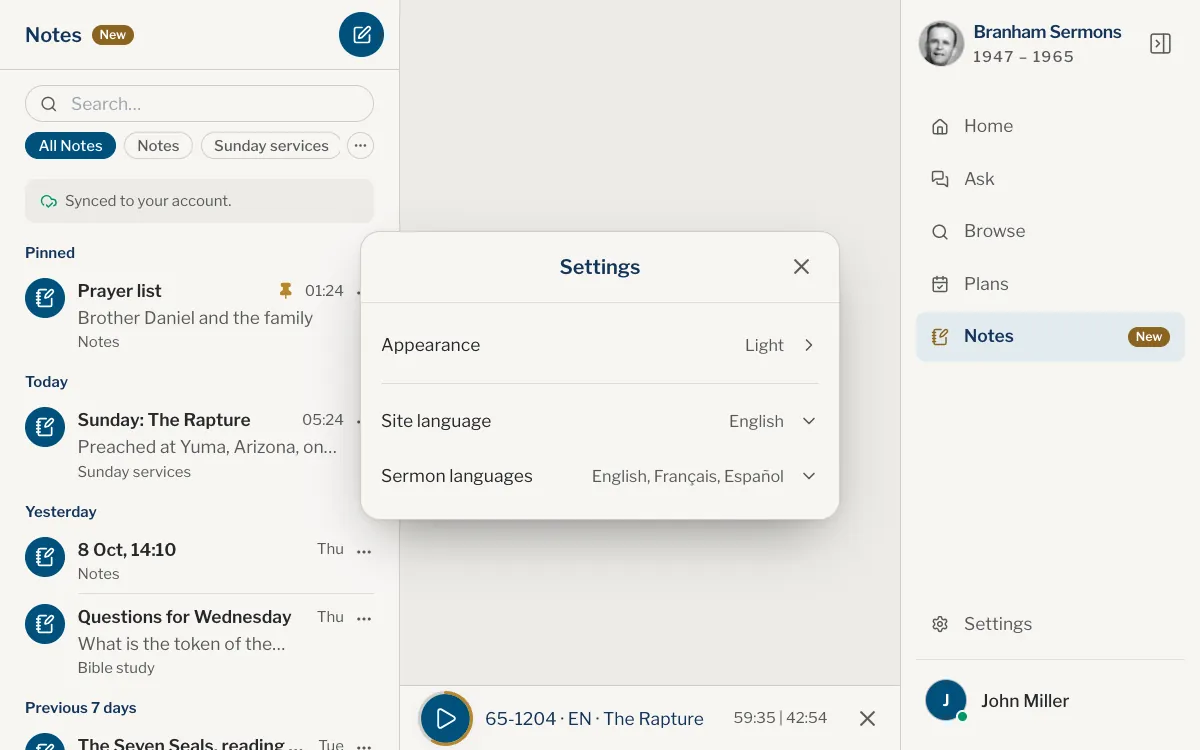
On iPad and Mac there is no gear: choose Settings in the sidebar. It opens as a window in the middle of the screen. A row opens its page inside it, the arrow at the top left goes back, and ✕ closes it.
What each setting does
Web
| Setting | What it does |
|---|---|
| Site language | The language the site is shown in. See Choose your languages. |
| Sermon languages | The languages in which sermon texts and recordings are offered, up to five. See Choose your languages. |
| Appearance | Light, Dark, or System, which follows your device. |
| Reminders | The Evening reminder and the Quote of the day, each with a switch and a time. Listed only where your browser can receive notifications. See Reminders and notifications. |
| Sermons on this device | Keeps every sermon in your language on this device, to read without a connection, and Remove from this device takes them off again. See Read sermons without a connection. |
App
| Setting | What it does |
|---|---|
| App language | The language of the app, of the texts it searches and of its answers. |
| Sermon languages | The languages in which sermon texts and recordings are offered, up to five. See Choose your languages. |
| Appearance | Light, Dark, or System, which follows your device. |
| Reminders | The Evening reminder and the Quote of the day, each with a switch and a time. See Reminders and notifications. |
| Sermons on this device | Keeps every sermon in your language on the device, to read without a connection, and removes them again. See Read sermons without a connection. |
| Downloads | The recordings kept on your device to listen to without a connection. Swipe one to the left to remove it. |
| Tab bar | On iPhone only. Changes the order of the tabs: three sit between Home and You, and the fourth waits in You. |
Signed in with a confirmed email address, your settings are saved with your account and picked up on your other devices. See your account on every device.
Where the rest lives
Web
| Looking for | Where it is |
|---|---|
| Text size, reader width, reading colours | In the reader’s ☰ menu, under Look and feel. |
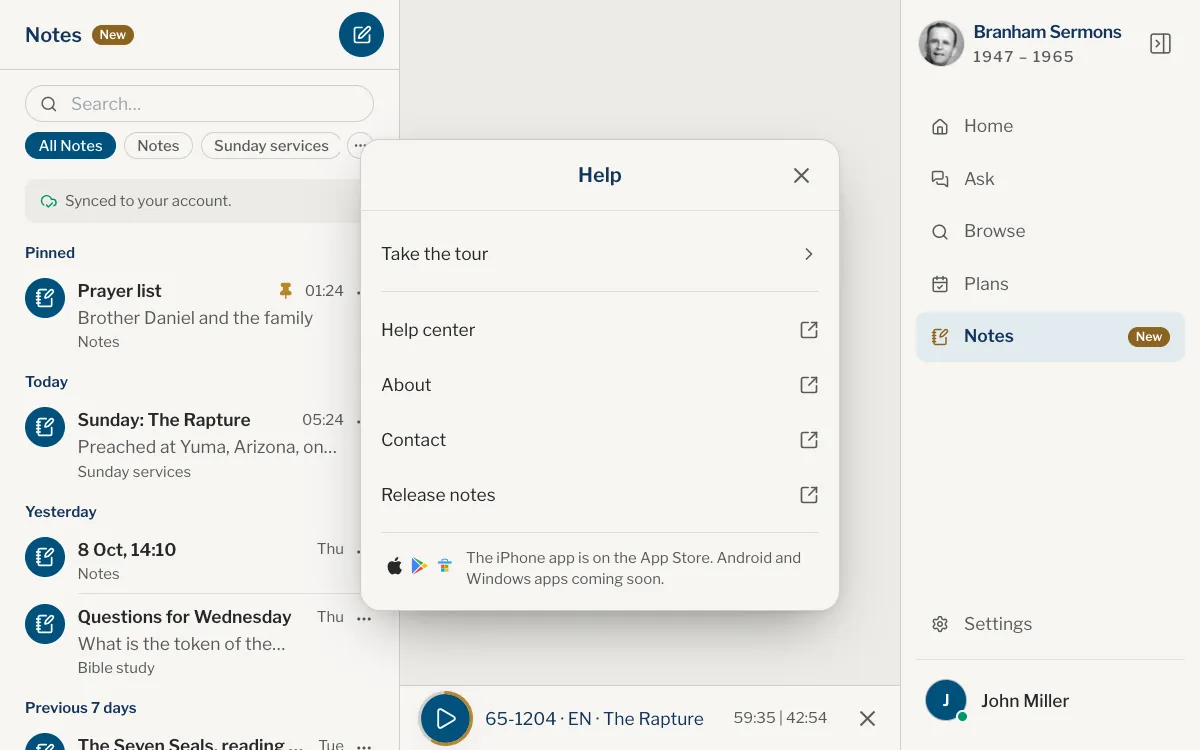
| Help, the guided tour, release notes | Your photo and name at the foot of the panel on the right, then Help. It lists Take the tour, Help center, About, Contact and Release notes. |
| Name, photo, email, sign out, delete account | Your photo and name at the foot of the panel on the right, then Profile, then My account. |
App
| Looking for | Where it is |
|---|---|
| Text size, reader width, reading colours | In the reader’s ☰ menu, under Look and feel. |
| Help and the guided tour | On You, the menu button at the top right, then Help, which starts with Take the tour. On iPad and Mac, your photo and name at the foot of the sidebar, then Help. |
| About and release notes | Open Help or the menu button on You, then About. Release notes is on the About page. |
| Name, photo, email, sign out, delete account | You, then My account. |
How do I turn on dark mode?
Open Settings, choose Appearance, then Dark. System follows your device and changes by itself.
How do I change the language?
In Settings, choose Site language on the website or App language in the app. The languages of the sermons themselves are under Sermon languages. See Choose your languages.
Where did the reading colours go?
They are not in Settings. Open a sermon, then the ☰ menu and Look and feel.
Where is the guided tour?
In Help, on the first row: Take the tour.
Do my settings follow me to another device?
Yes, when you are signed in with a confirmed address. Signed out, a setting stays on the device where you made it.
Was this article helpful?
Still stuck?
Write to us with what you were doing and what you saw, and we will help.
Related articles
- Change the text size, colours and light or darkMake the sermon’s text larger or smaller, narrower or wider, choose reading colours, a typeface and light or dark, and see each change as you make it.
- Choose your languagesThe language of the screens, the languages of the sermons you read and the language of your questions are three separate choices. Here is where to set each.
- Reminders and notificationsTurn on the quote of the day, the evening reminder and reading plan reminders in the app or on the website, allow notifications, and see what the bell on Home is for.