
Change the text size, colours and light or dark
Make the sermon’s text larger or smaller, narrower or wider, choose reading colours, a typeface and light or dark, and see each change as you make it.
On this page
The sermon’s text is yours to set: its size, the width of its column, its colours, its typeface and weight, and light or dark. Every change shows on the sermon as you make it.
Open Look and feel
- Open a sermon, then its ☰ menu.
- Choose Look and feel.
- Change a setting. The sermon stays in view behind it, undimmed.
- Tap a row to open its page, and the arrow at the top left to go back.
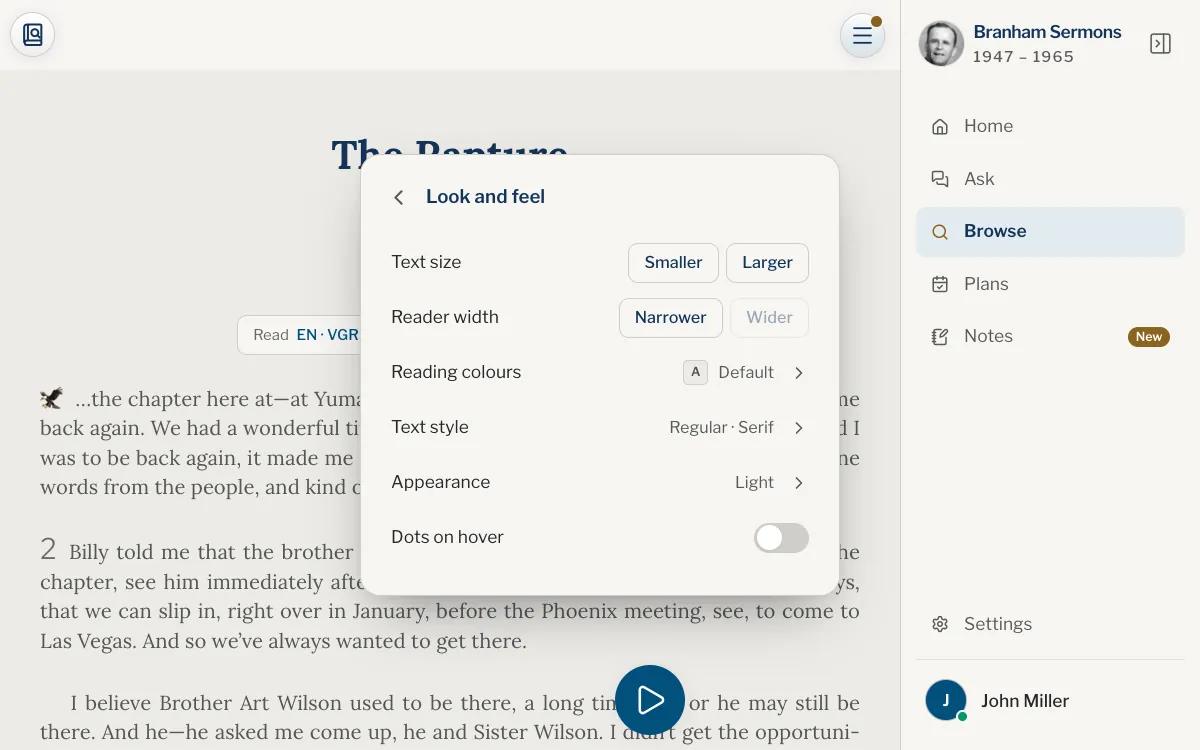
What you can change
| Setting | What it does |
|---|---|
| Text size | The Smaller and Larger buttons step the size of the sermon’s text. |
| Reader width | Narrower and Wider change the width of the column when you read one text. Where the column already fills the screen, as on a phone, Wider is greyed. |
| Reading colours | Pairs such as Sepia, Green on black or Black on white. Default follows light or dark. |
| Text style | Text weight, Regular or Bold, and Typeface, Sans serif or Serif. |
| Appearance | System, Light or Dark. System follows your device. |
| Dots on hover | On a computer, underlines with dots the sentence under the pointer. |
Reading colours and text style apply to the sermon page in Browse and in Projection Mode. Appearance applies to the whole site or app, and is also under Settings.
What each device keeps
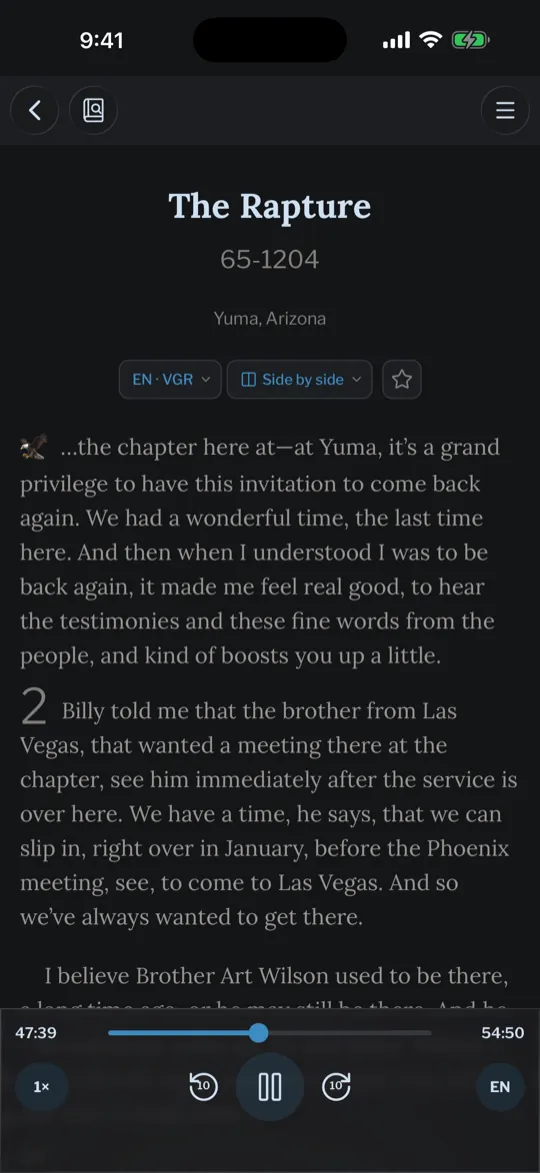
Each device keeps its own text size, reader width, colours and text style, so your tablet can have a larger text than your phone. Light or dark follows your account when you are signed in.
On wide screens the text is justified, and on a phone it is aligned to the left. Text size changes the sermon only: the menus and the rest of the site keep one size.
How do I make the text bigger?
Open the ☰ menu, then Look and feel, and tap Larger until it suits you. The sermon keeps your place as the text grows.
Why is Wider greyed out?
The column already fills the space it has, as on a phone or with the index open beside the sermon. On a wide screen, close the index to give it room.
How do I turn on dark mode?
Choose Dark under Appearance, in Look and feel or in Settings. System follows your device.
Does my text size follow me to my other devices?
No. Each device keeps its own text size and width. Light or dark follows your account.
Does it change the text of answers and Home?
No. Text size changes the sermon’s text only.
Was this article helpful?
Still stuck?
Write to us with what you were doing and what you saw, and we will help.
Related articles
- Open a sermon and read itHow a sermon opens, what the top bar and the ☰ menu hold, and how to move through the text: paragraph numbers, the star, the PDF, scrolling and jumping.
- Fullscreen Reading and landscape full screenLet the bars and the player slide away as you read, or give a phone’s whole screen to the text, held sideways.
- Settings: where they are and what they doOpen Settings on the website or in the app, and see what each setting changes: appearance, languages, reminders, the sermons kept on your device, and where Help is.