
Read two texts side by side
Set two languages, or two versions, facing each other sentence by sentence on a phone, a tablet or a computer, and go back to one text when you like.
On this page
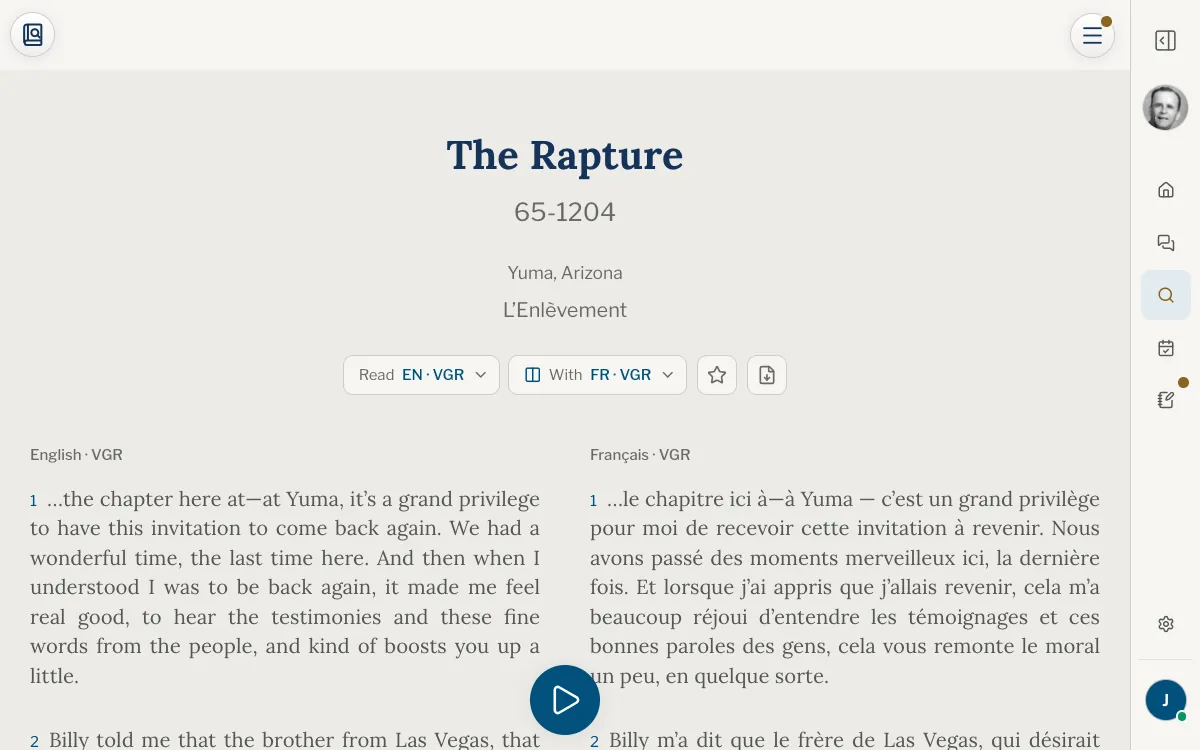
Side by side sets a second text facing the one you read, so you can follow a sermon in two languages, or in two translations of one language. The two texts follow each other sentence by sentence, and the passage you came from is lit in both.
Turn it on
- Open the ☰ menu and choose Side by side. A second text appears beside yours.
- To change it, open the menu beside Read under the sermon’s title: it says Side by side, or With and a language once a second text is showing.
- Pick the text that should face yours. The texts are grouped by language and version.
- To go back, pick One text only in that menu, or choose Side by side in the ☰ menu again.
What you see
- Select a sentence in one text and the sentences that face it are tinted in the other.
- Highlights show in both texts, on the sentences that translate them.
- A new language chosen in the Read menu or the ☰ menu is shown alone, at the same sentence. A new version of the same language keeps the two texts.
On a phone
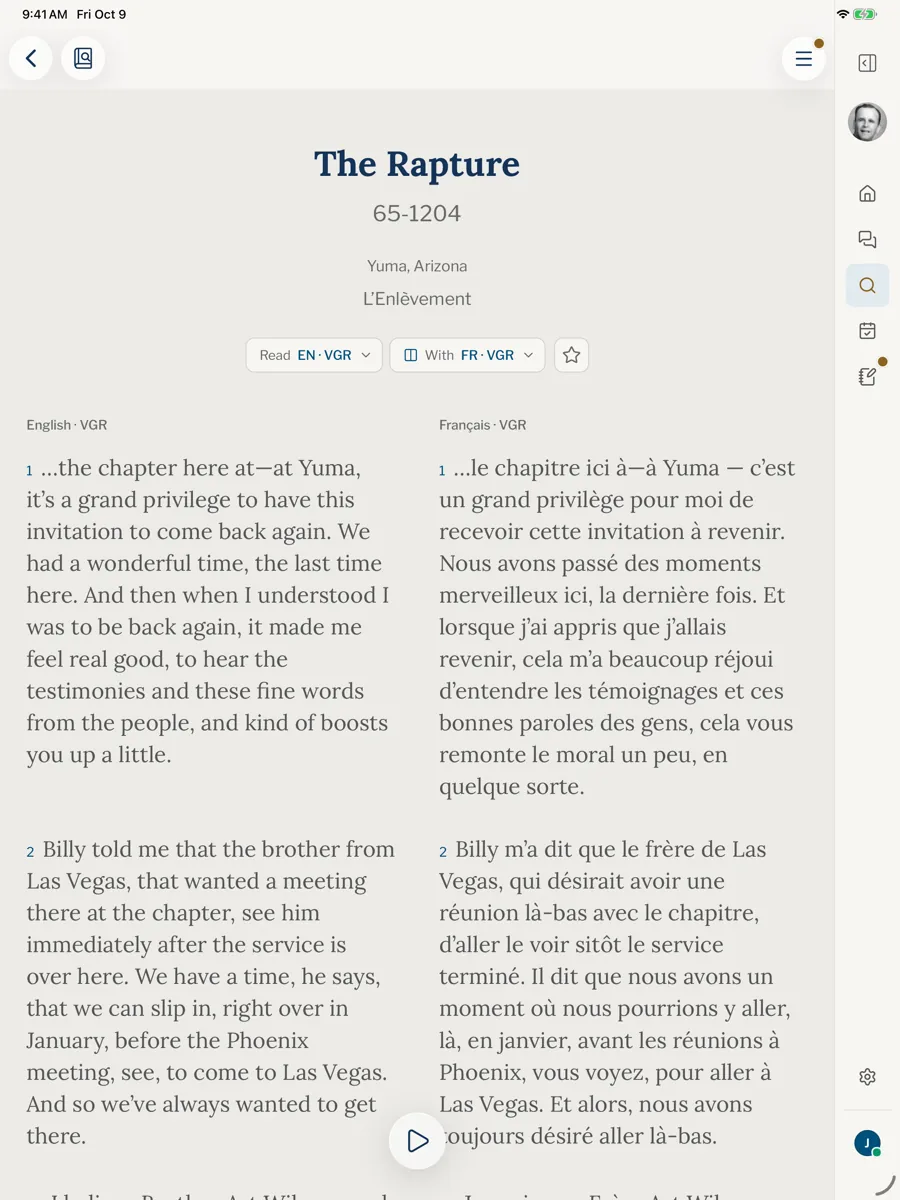
On a phone, side by side shows the two texts alone, in landscape: the bars and the player step away. The app turns the screen sideways for you; on the website, a phone held upright asks you to turn it.
A small pill floats at the bottom. It holds the recording’s play button once a recording has started and, when you tap a sentence, becomes the colours with Bold, Note, Copy and Share. Drag it by its grip to move it; it fades while you read, and a tap brings it back.
A note opens on a page of its own, clear of the keyboard. The ✕ at the top right, named One text only, goes back to one text at the same sentence.
On a tablet or a computer
The two texts stand in columns, each headed by its language and version. The sidebar and the index step aside to give them room, and come back when you return to one text.
Why is Side by side missing from my menu?
The sermon has no second text that can be matched to the one you read. A few translations cannot be matched to the English passage by passage.
How do I go back to one text?
Choose One text only in the Side by side menu, tap the ✕ on a phone, or choose Side by side in the ☰ menu again.
Can I compare two versions of the same language?
Yes, where the sermon has two versions that can be matched, such as the two French versions. Pick the second in the Side by side menu. See Read in another language or version.
Why does it ask me to turn my phone?
Two texts need the width. The app turns the screen for you, and the website asks you to.
Can I listen while I read two texts?
Yes. The recording follows the text you read, not the one beside it. See Play a recording.
Was this article helpful?
Still stuck?
Write to us with what you were doing and what you saw, and we will help.
Related articles
- Read in another language or versionSwitch a sermon between English, French, Spanish, Portuguese and Chinese at the same sentence, and learn what the codes VGR, SHP, MH and MH-B mean.
- Open a sermon and read itHow a sermon opens, what the top bar and the ☰ menu hold, and how to move through the text: paragraph numbers, the star, the PDF, scrolling and jumping.
- Highlight a passage and choose its colourSelect sentences in a sermon, mark them in a colour or in bold, and find them again in your library. Works on the website and in the app.