
Use Projection Mode to show the text to a room
Show the text of a sermon alone and large on a tablet or a computer, with a gear for the language, the colours, the recording and a search.
On this page
Projection Mode shows a sermon’s text alone and large, so a room can read it on a screen or a projector. It is for tablets and computers: the iPad, the Mac, and the website on a tablet or a computer. A phone has Landscape full screen instead.
Start Projection Mode
- Open a sermon, then its ☰ menu.
- Choose Projection Mode, the row with the cast icon.
- In the window that opens, set the language, the text size and the colours. The text behind shows each change.
- Tap or click Start. Only the text is left.
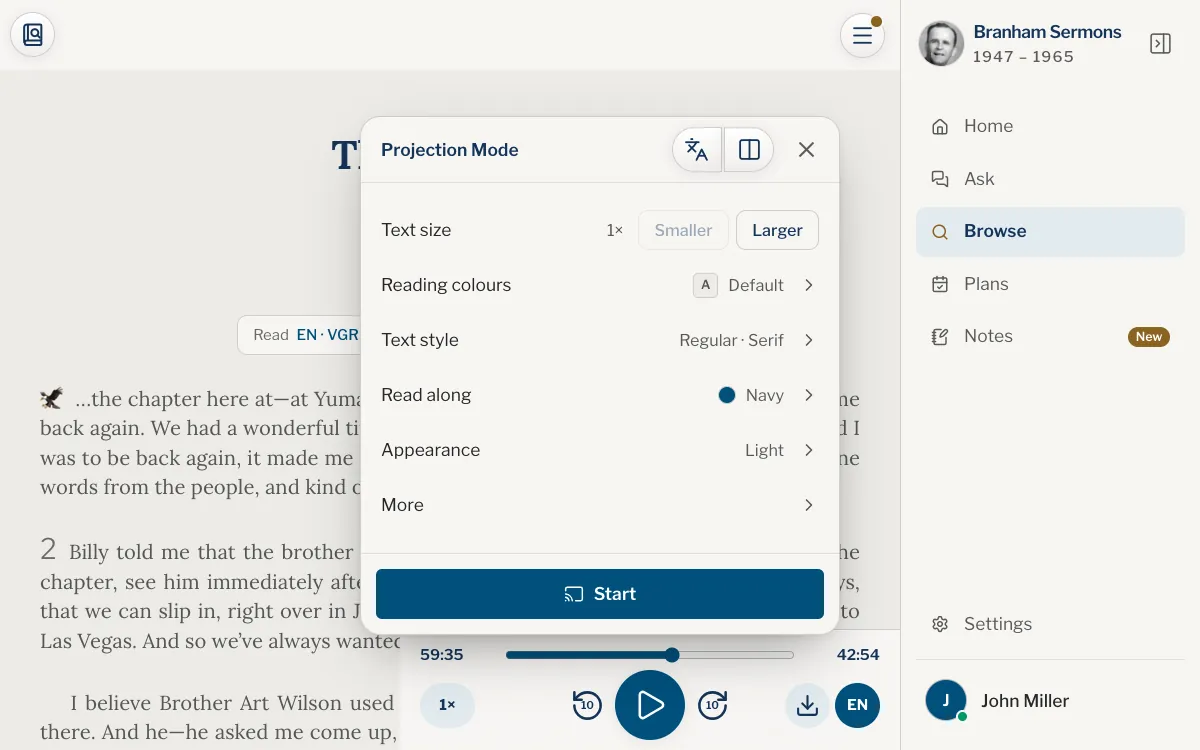
The gear and its settings
Once the text is on screen, one gear sits at the top right. It hides while nothing moves, shows faintly when the mouse moves or the screen is touched, and lights up when you point at it. Open it for the settings.
- Two buttons at the top: one for the language and one for Side by side.
- The recording’s play, pause and skips.
- Text size, as a multiple of your usual size.
- Reading colours and Text style, the same as in Look and feel.
- Read along: how the words being said stand out.
- Appearance: light or dark.
- More: Sermon name at the top, a Scroll bar, and Highlights and notes, which shows your highlights and brings up the bar to highlight, make bold or write a note.
- Leave Projection Mode, at the foot.
Search inside the sermon
- Open the gear and tap the magnifier at the top, Search.
- Type words or a paragraph number and press Enter.
- Pick a passage in the list, or step through them with the arrows or Enter. The text follows.
- Tap the back arrow to return to the settings.
Point, select and leave
Click or tap the words to leave a thick cursor where you stopped, so the room sees what you point at. Drag across words to select them for everyone to see; in the app, hold a word, then slide.
Web
Press Esc to leave, or open the gear and choose Leave Projection Mode. The site also asks the browser for its full screen; in Chrome and Edge, holding Esc leaves that too.
App
Open the gear and choose Leave Projection Mode.
Can I use Projection Mode on my phone?
No. A phone has Landscape full screen instead: the text alone, held sideways. See Fullscreen Reading and landscape full screen.
Why did the gear disappear?
It hides while nothing moves. Move the mouse or touch the screen and it shows again.
How do I make the text bigger for the back of the room?
Open the gear, find Text size and tap Larger.
Can I show two languages?
Yes. Use the Side by side button at the top of the settings, and each text is named at the top.
Was this article helpful?
Still stuck?
Write to us with what you were doing and what you saw, and we will help.
Related articles
- Fullscreen Reading and landscape full screenLet the bars and the player slide away as you read, or give a phone’s whole screen to the text, held sideways.
- Change the text size, colours and light or darkMake the sermon’s text larger or smaller, narrower or wider, choose reading colours, a typeface and light or dark, and see each change as you make it.
- Read along: the words light up as they are saidRead while you listen: the part being said is marked, the rest of the page rests, and the page moves with the recording.