
Find your way around the website and the app
Where Home, Ask, Browse, Plans, Notes, You, Settings and Help are on the website and in the app, how to take the guided tour, and where to find what.
On this page
The website and the app share the same few places: Home, Ask, Browse, Plans and Notes, then Settings, Help and your own page. What changes is where you tap to reach them, and this page shows both. New visitors are offered a guided tour, which you can take again from Help.
The places
- Home: the question box, the quote of the day, and what you were in the middle of.
- Ask: your conversations, and the one you are in.
- Browse: the index of every sermon, the search, and the sermon you are reading.
- Plans: reading plans, with the one you are on.
- Notes: a notepad of your own.
- You (Profile on the website): your activity and badges, and everything you keep, such as favourites, highlights, plans and what you read and heard.
- Settings: light or dark, and your languages.
- Help: the guided tour, this guide, and how to reach us.
On the website and in the app
Web
On the website the places are in a panel on the right. On a wide screen it stands open beside the page, and the button at its top folds it into a column of icons. On a tablet it is always that column, and the same button opens the whole panel over the page. On a phone, use the menu button at the top right.
At the foot of the panel are Settings and your account: your photo and name, or Sign in. The account menu holds Profile, Help and Sign out.
App
iPhone
A tab bar at the foot of the screen holds Home, Ask, Browse, Plans and You. Notes waits on You: open it from its row there, or put it in the tab bar.
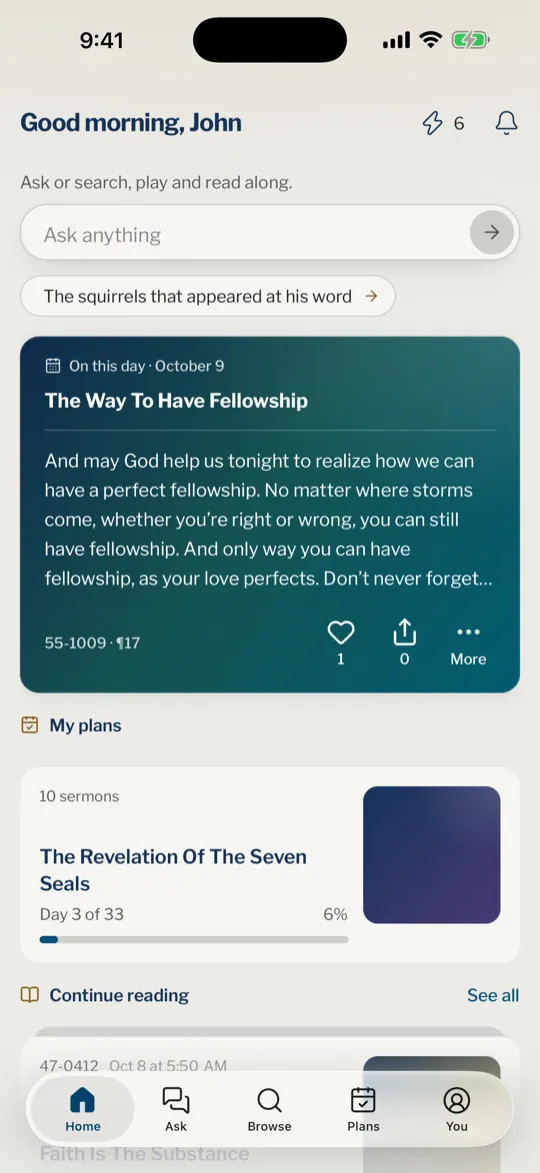
You choose which three of Ask, Browse, Plans and Notes sit between Home and You.
- Open You and tap the gear at the top right.
- Tap Tab bar.
- Touch and drag the tabs to put the three you want at the top of the list. The one left over waits on You.
iPad and Mac
A sidebar on the right takes the place of the tab bar, with Home, Ask, Browse, Plans and Notes, then Settings and your account at its foot. On iPad it is a column of icons, and the button at its top opens it in full over the page. On Mac it stands open, and the same button folds it. The account menu holds Profile, Help and Sign in or Sign out.
Where to find things
| I want to… | Go to… |
|---|---|
| Ask a question | Home, or Ask |
| Find a sermon by date, title, series or place | Browse |
| Search for exact words in the sermons | Browse, then the search |
| Read or listen to a sermon | Open it from Browse, or from an answer’s sources |
| Change the text size or the colours while I read | The ☰ menu in a sermon, then Look and feel |
| Follow a reading plan | Plans |
| Write a note | Notes |
| See my highlights, favourites and what I was reading | You |
| Change the language of the screens or of the sermons | Settings |
| Take the tour again, open this guide or contact us | Help |
Help and the guided tour
The guided tour lights one part of the screen at a time and says in a sentence or two what it is for: asking, your conversations, Browse, reading, listening, keeping a passage, plans, and where Settings and your profile are. You can take it again whenever you like.
Web
- Open the account row at the foot of the panel. On a phone, use the menu button at the top right first.
- Choose Help.
- Choose Take the tour.
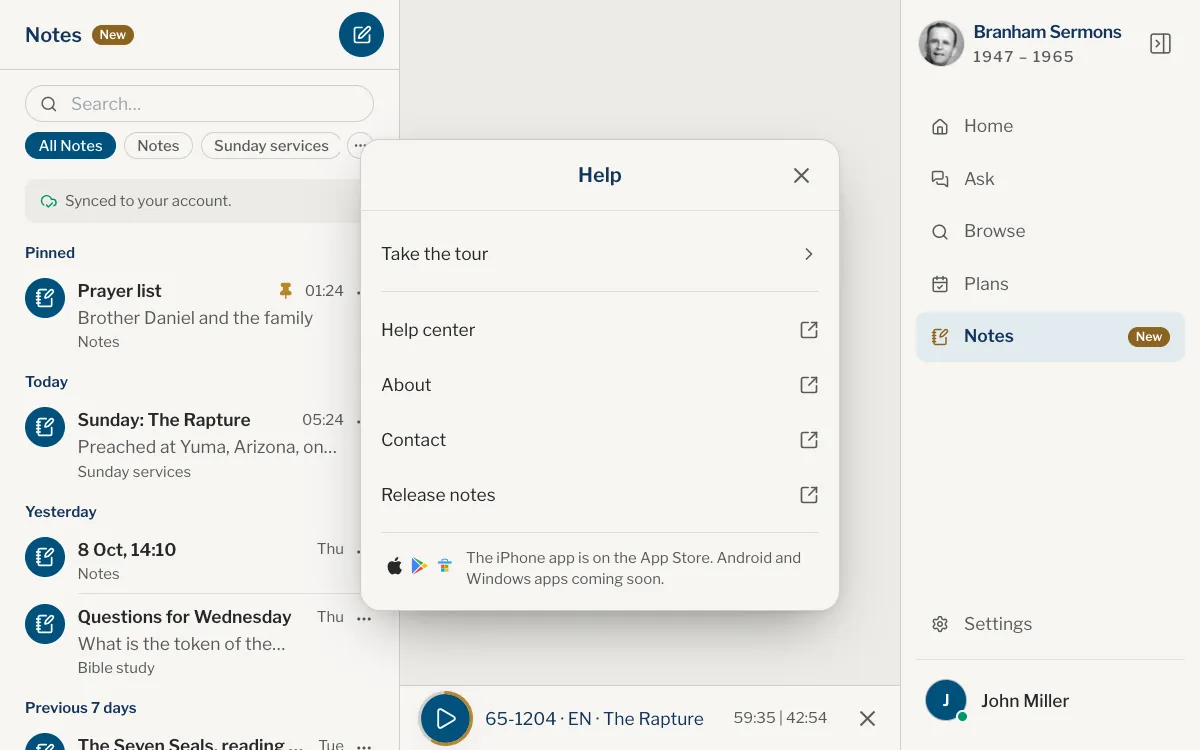
The same window opens this Help center, About, Contact and Release notes. After a change we announce, a What’s new card can appear once on Home: Continue closes it, and Release notes opens the full list.
App
iPhone
- Open You.
- Tap the menu button at the top right.
- Tap Help.
- Tap Take the tour.
iPad and Mac
- Open the account row at the foot of the sidebar.
- Choose Help.
- Choose Take the tour.
The tour moves on by itself. Next goes to the following step at once, the round button beside it pauses the tour, and Skip ends it.
Where is the menu on my phone?
On the website, the menu button at the top right opens the panel. In the app, the tab bar is at the foot of the screen, and Settings and Help are under You.
Where did Notes go?
On iPhone, Notes is not in the tab bar until you add it. Open You and tap its row, or follow the steps above to put it in the tab bar. On the website, and on iPad and Mac, it is in the panel.
Where are my favourites and highlights?
Under You (Profile on the website). Each kind has its own pill, such as Favorites and Highlights.
How do I take the tour again?
Open Help, then Take the tour, as in the steps above.
How do I change the language?
In Settings. Choose your languages explains the three choices.
Was this article helpful?
Still stuck?
Write to us with what you were doing and what you saw, and we will help.
Related articles
- Welcome to Branham SermonsWhat Branham Sermons is, the ways in to the sermons, where it runs, and what you can do with and without an account.
- Settings: where they are and what they doOpen Settings on the website or in the app, and see what each setting changes: appearance, languages, reminders, the sermons kept on your device, and where Help is.
- Create an account and sign inWhat you can do without an account, what an account keeps, how to sign in with Google, Apple or email, and how to sign out.