
Contact support
How to write to us from the website or the app, the subjects the form offers, what to include so we can help quickly, and how to report a mistake in a text.
On this page
If the articles here don’t solve it, write to us. The Contact page works from any browser and opens from the app, and you can also email [email protected].
Open the Contact page
Web
- Open Contact, or click your photo and name at the foot of the panel on the right, then choose Help and Contact.
- Choose a subject.
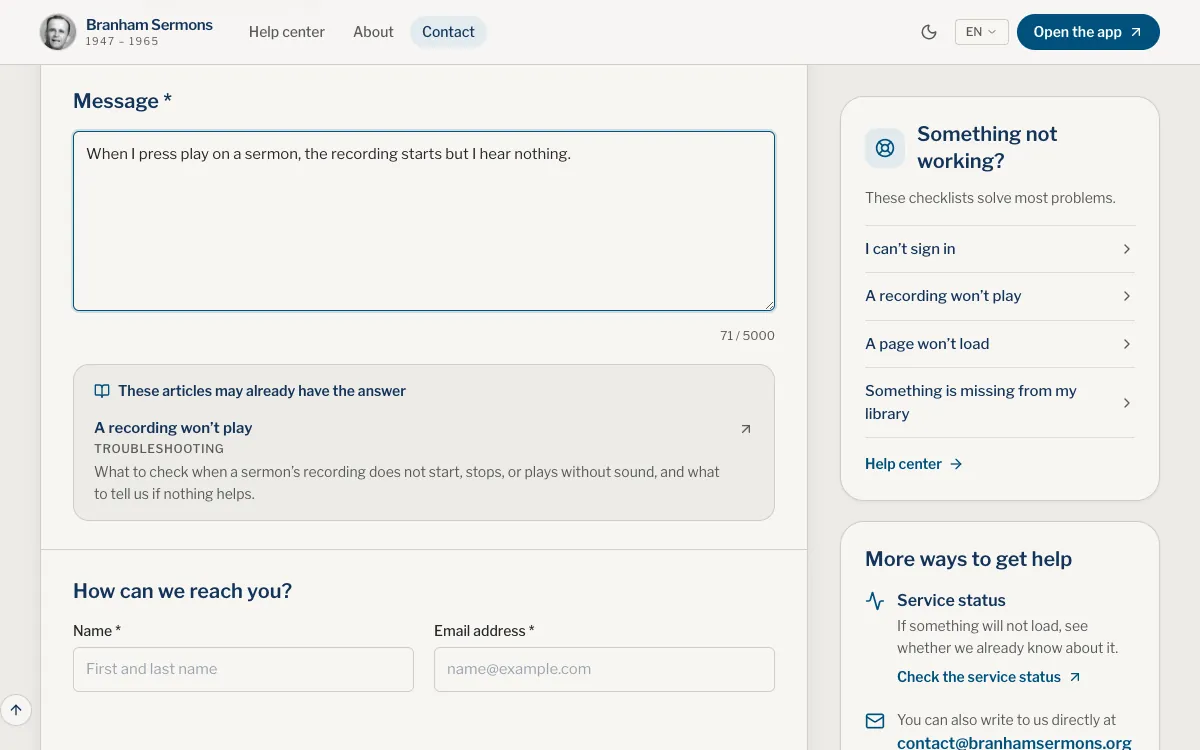
- Write your Message, at least 10 characters. For a question, a suggestion or a problem, the articles that may already have the answer appear under it as you write; each opens in a new tab and your message stays here.
- Fill in Name and Email address.
- Choose Send message. The page answers Thank you, your message has been sent.
App
- Open Help: on iPhone, the menu (More) on the You tab; on iPad and Mac, your photo and name at the foot of the sidebar.
- Tap Contact us. The Contact page opens in your browser.
- Write your Message, at least 10 characters. For a question, a suggestion or a problem, the articles that may already have the answer appear under it as you write.
- Fill in Name and Email address.
- Tap Send message. The page answers Thank you, your message has been sent.
Choose the subject
The form offers these subjects:
- A question about Branham Sermons
- A mistake in a text
- A suggestion
- A technical problem
- Partnership or press
- Support the ministry
- Something else
For anything that doesn’t work, choose A technical problem. Support the ministry is for those who want to support the work, not for asking for help.
What to include
- What you were doing and what you saw, with the exact words of any message.
- Whether it also happens on the website, or in the app, and whether it is every sermon or only one.
- The sermon code and the paragraph, if the problem is in a text.
- Your device and its system version, for example from Settings, General, About on an iPhone or iPad.
- A screenshot, if you can.
- Never your password.
Web
- The browser you use, and its version.
- The address of the page, from the address bar.
App
- The version of the app: open Help, then About; it is shown at the foot of the page.
- The screen you were on, for example Home, Browse or the player.
A mistake in a text
Open the Contact page, which opens on A mistake in a text, and fill in Sermon and paragraph concerned with a reference such as 63-0318 ¶117. Tell us the sermon and the paragraph, and what looks wrong, and we will correct the text. Sermon codes and paragraph numbers shows where to find both.
Before and after you send
Before you write, the status page shows whether we already know about a problem. Your message is covered by our privacy policy.
The page tells you We will reply to the address you gave., so check that the address is right and look in your spam folder while you wait. A half-written message is kept if you reload the page.
Where does the reply go?
To the address you typed in the form. Check it before you send, and look in your spam folder.
The form says the message could not be sent.
You see The message could not be sent. Try again in a moment. Try again in a moment, and again if The anti-bot check did not complete. Please try again. appears. If it keeps failing, email [email protected].
Can I attach a screenshot?
The form has no attachment field. Email the screenshot to [email protected] with the same details.
Should I send my password?
Never. We never need it.
How do I delete my account?
You don’t need to write to us: see Delete your account.
Was this article helpful?
Still stuck?
Write to us with what you were doing and what you saw, and we will help.
Related articles
- I can’t sign inWhat to check when sign-in fails, for Google, Apple, or email and password. How to reset a forgotten password, then the basics.
- A page won’t loadWhat to try when a page stays blank or a sermon does not open, what the connection and can’t-be-opened messages mean, and when to write to us.
- Delete your accountWhere to find Delete account on the website and in the app, how to download your data first, what happens after you confirm, and what is deleted and what is kept.