
Choose a reading plan and start it
Pick a series, a year of sermons, the Church Age Book or every sermon in order, choose the time a day, read or listen, and start. Starting a plan needs an account.
On this page
A reading plan takes you through the sermons in order, a portion a day, for the time you choose. It suits you if you would rather have a steady rhythm than decide each day what to read. Starting a plan needs an account.
Choose a plan
The Find plans tab offers these kinds of plan.
- All the sermons, 1947–1965: every sermon in the order he preached them, counted in years.
- Series: a series such as the Seven Seals, in its own order.
- The Church Age Book, chapter by chapter, which you find among the Series.
- Year by year: the sermons of one year from 1953 to 1965, and one plan for the early years.
Web
- Open Plans in the sidebar. On a phone, open the menu at the top right first.
- Choose Find plans.
- Tap the All the sermons card, or open Series or Year by year and tap a plan.
App
- Tap Plans in the tab bar. If you put another section there, Plans waits on You.
- Choose Find plans.
- Tap the All the sermons card, or open Series or Year by year and tap a plan.
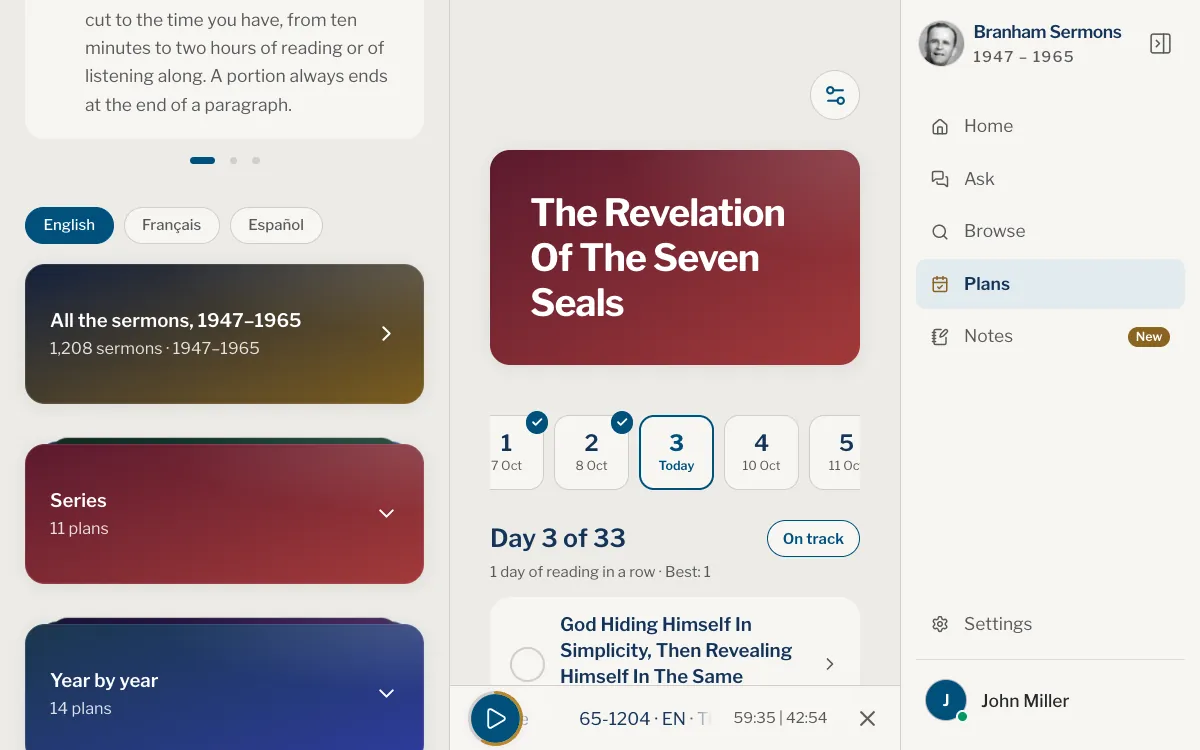
If your sermon languages include Spanish or Portuguese, a button for each of your languages at the top of Find plans switches the list. The Spanish and Portuguese lists are shorter: they hold only the plans whose sermons exist in that language.
Read the preview
A plan’s page says how many sermons it holds and about how many hours they take to read. How long it takes lists each time a day, from ten minutes to two hours, or a sermon a day, with the number of days it makes and, under it, the same length in months and years. Tap the figures to switch between the two.
The times are approximate. A reading day is counted from the words, not from the audio, which runs longer, and every day stops at the end of a paragraph. A listening day is counted in minutes of the recording, and can run a little over or under.
Before you start, you also choose how you follow the plan.
- Read in: the plan’s language, when it has more than one.
- Reading or Listening, when the plan offers both.
- The time a day, or a sermon a day (a chapter a day for the Church Age Book).
Start it
Web
- On the plan’s page, choose the language and, if both are offered, Reading or Listening.
- Tap Start.
- Choose the time a day. Each choice shows the date the plan would end.
- If your browser can receive notifications, leave Reminder on and choose the hour, or turn it off.
- Tap Start again.
App
- On the plan’s page, choose the language and, if both are offered, Reading or Listening.
- Tap Start.
- In Start this plan, choose the time a day.
- Leave Reminder on and choose the hour, or turn it off.
- Tap Start.
The first day is today. Your plan now shows under My plans on Plans, on Home, and under the Plans pill of You. Save, beside Start, keeps a plan under Saved to start later.
Can I follow more than one plan?
Yes. My plans lists every plan you follow.
Can I change the time a day after I start?
Yes, in the plan’s settings. Your place in the plan is kept. See Follow a plan.
Do I need the app to follow a plan?
No. The website and the app follow the same plans, and a plan started on one shows on the other. Both can remind you of the day’s reading.
What if I change my mind?
Open the plan’s settings and choose Stop this plan. Your progress is lost on all your devices, so it asks first. You can start the plan again later from Find plans.
Was this article helpful?
Still stuck?
Write to us with what you were doing and what you saw, and we will help.
Related articles
- Follow a plan day by dayOpen each day’s reading, stop where it ends, mark it read and move on, and change language, time or reading mode without losing your place.
- Catch up when you fall behindSee how many days you have missed, move the plan forward with Catch me up, or turn missed days off so the plan simply opens on your next reading.
- Create an account and sign inWhat you can do without an account, what an account keeps, how to sign in with Google, Apple or email, and how to sign out.